ios

Tameno for Apple Watch, iPhone, iPad, Mac and Apple TV helps you stretch, brush your teeth, do exercises, water your plants, meditate, do yoga, and so much more, with auto-repeating timers. Set an interval, and it’ll inform you every time it elapses.
Version 1.2.5 adds more audio feedback options, improves background execution on the Watch, and more.


What is Tameno?

I have an electric toothbrush. It has a built-in 30sec timer, so I can brush each quadrant of my teeth for the same amount of time. But what about each side of each quadrant? I needed a 10-second self-repeating interval that would tell me to move on. That’s where the idea for Tameno came from.
Now, I just start Tameno at a 10 second interval, and until I’m done brushing, it’ll let me know that 10 seconds have passed continuously. Perfect. Now I can also do my stretches without having to count in my head, or water my hedge-plants for the same amount of time. Bliss!
With widgets on your lock screen, home screen or in Control Center, and custom shortcuts in the Shortcuts app, your favorite intervals are always just a tap away!


What’s New in Tameno v1.2.5?
  • New audio feedback sound options: In addition to “Tick”, there’s now “Bamboo”, “Wood”, “Chime”, “Glass”, “Service Bell” and “Bell”.
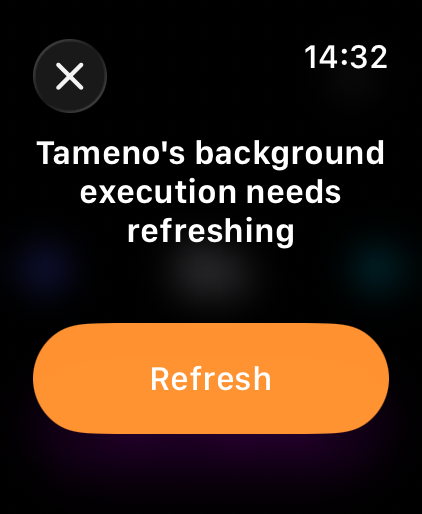
  • The background execution on Apple Watch has been improved, in that it now lets you know when its allotted time is about to run out so you can continue without interruptions
  • Fixes UI issues on Apple TVs running tvOS 26
  • More haptic feedback, better scrolling-adjustments on macOS, and other fixes

👉 For the full release notes, please click here 👈


Links and Availability

➡️ Website

❗️Tameno is a one-time lifetime universal app purchase. That means you purchase it once (on the store of your choice), and are then free to use it on your Apple Watches, and iPhones, and iPads, and Macs, and Apple TVs.
The app requires macOS 13, iOS 16, watchOS 9.4 and tvOS 16 or newer and is currently localized into English, German, French, Italian, Spanish, Dutch, Japanese and Simplified Chinese.

🖥️ Mac App Store
📱 iPhone App Store / iPad App Store
⌚️ watchOS App Store
📺 tvOS App Store

💡 Get to Know Tameno (User Guide)

💌 Contact & Connect


If you have any feedback or questions, please don’t hesitate to use the contact link above, or below : )
Have a great day, and thank you for stopping by.

Read more


Citator is your personal quotes library. Save quotes and cherish them within the app, on your lock screen or on your home screen with widgets.
Version 1.1 adds export options and improves the UI.


What is Citator?

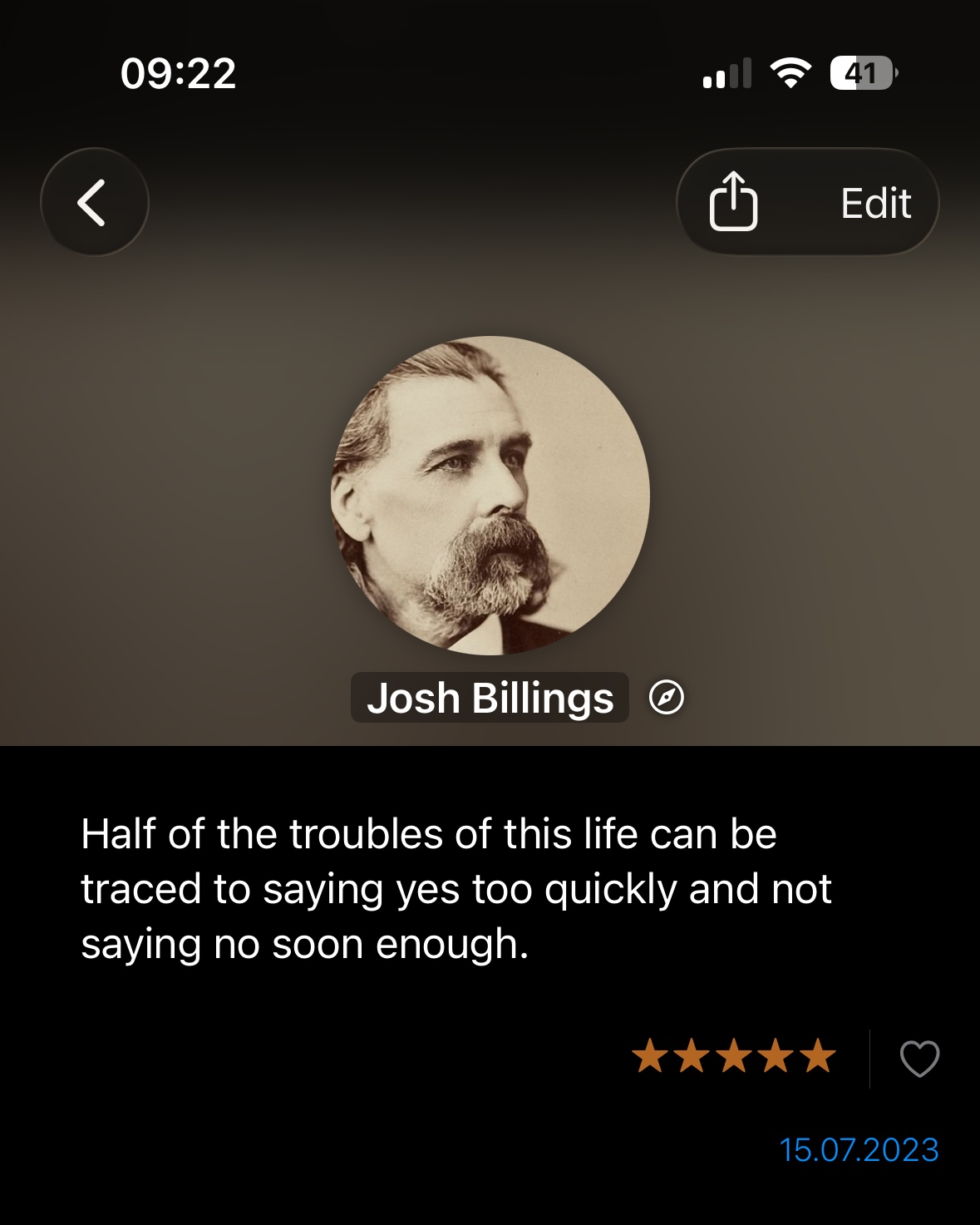
Citator makes it easy to store quotes you come across. Type them in manually, or scan them with your camera. Author’s images are automatically loaded from Wikipedia; add metadata like the source of the quote, a location, and rate and favorite them.
Display them on your lock screen or home screen with widgets, which let you cycle through them randomly, or pick specific quotes.


What’s New in Citator v1.1?

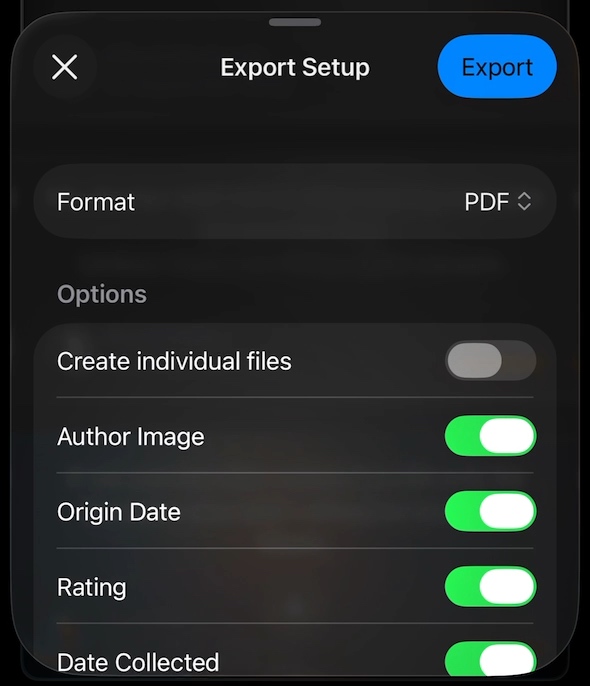
  • Export your quotes library as PDF, plain text, rich text, images or JSON for backup or sharing
  • The app’s look has been adapted to iOS 26
  • When editing a quote, you now get a warning when dismissing the sheet so you won’t lose your progress accidentally
  • A new About area makes it easier to contact me

👉 For the full release notes, please click here 👈


Links and Availability

➡️ Website

👉 Citator is a free app.
The app requires iOS 15 or newer and is currently localized into English and German.

📱 iOS App Store

💌 Contact & Connect


If you have any feedback or questions, please don’t hesitate to use the contact link above, or below : )
Have a great day, and thank you for stopping by.
Read more

Maybe this is common knowledge and everybody knows this, but I’ve only recently come to learn how this works, so I thought I’d share.

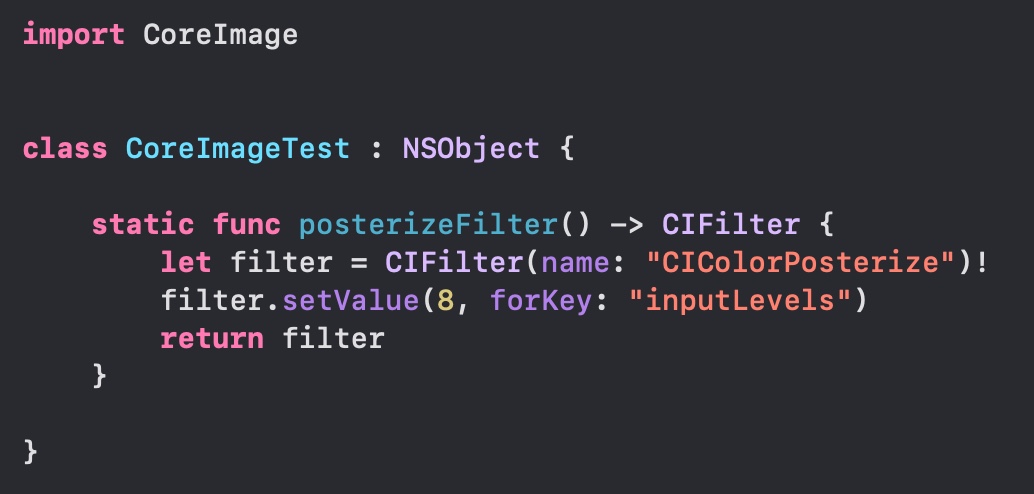
I’ve been setting up Core Image filters like this for god knows how long:

The downsides are obvious:
1) I have to know the exact name of the filter (“CIColorPosterize”)
2) I have to know the keys and values it accepts (“inputLevels”)

    Browsing the Core Image headers, I did find functions for these filters where you could just call let filter = CIFilter.colorPosterize()

    Yet every time I tried, it never worked and would give me an error that
    CIFilter has no member 'colorPosterize'.
    Well, “Crap!“, I thought, this must be something that will become available eventually.

    How wrong I was. This has been available for a while, you just need to know how to do it!
    The “trick” is to not only import CoreImage, but also (why!?) import CoreImage.CIFilterBuiltins:

    And lo and behold, it works. I’m so happy, I could cry.
    I’m off to refactor some stuff now.


    Read more

    We recently cancelled our cable/general TV subscription, which left us with a bit of an entertainment void. Not that TV was entertaining – we hardly watched anymore, hence the cancelling – but we do like to just “put something on” every now and then. So we decided to get Apple One (Premium, because we’re sharing with my mom).
    I was, at first, a bit hesitant to enable iCloud Photos – we have nearly 40.000 photos/videos, and obviously we don’t want to lose any of them. So I asked my cousin how he felt about it (he’s been using it for quite some time). He seemed happy with it, so I was confident in turning it on. A couple of backups on multiple drives later, I clicked the checkbox in Photos’ preferences on my Mac – and the waiting began.

    Upload Observations

    All in all, it took well over 36 hours to finish the upload. I began in the morning, let it run overnight in the hopes it would finish, but the next morning, it still kept going for more than half a day. I noticed that Photos didn’t continuously upload all photos. It uploads for a bit, then does some encoding for a bit, and then uploads again a bit. Now thankfully, my connection is pretty good with a consistent upload rate of ~7MB/s so I thought it would be done fairly quickly, but I didn’t consider that any encoding could be going on. Judging from Activity Monitor, at least videos are encoded before they go up into the cloud.

    My Mac (which has all the photos) was the first where I turned it on, and after it had finished, I also enabled it on my iPhone and iPad. Those were done syncing in about two days. “Thanks” to what Apple probably considers a “feature”: the constant pausing of the syncing process on iOS devices, in order to conserve battery: “Paused syncing to save battery”, it said anytime I looked. No! Why!? Sync!, that’s what the battery’s there for. Just do it, I don’t care. And don’t let me enable it for “a day”, let me enable it forever. Seriously. Get it done.

    Comparing to Photo Stream

    Previously, I mostly collected photos on my Mac via Photo Stream. And I have to say, while I do enjoy the new syncing features iCloud Photos offers (syncing albums, photo-edits, etc), newly taken photos now take noticeably longer to appear on other devices than before. Not a deal breaker, but noticeable.

    “Unable to Upload”

    65 photos were unable to upload, according to Photos on my Mac. Why? I couldn’t honestly tell you. Photos didn’t tell me. It should have, if you ask me. I’d have liked to know. And there’s no way to retry to sync those photos with iCloud. They’re just in the “Unable to Upload” smart-album forever.
    Albeit, a bit of online research reveals an Apple support document with one of the weirdest and Apple-unlike solutions to a problem I’ve ever come across:
    Step 1: Export the photos in question “unmodified” to a folder on your disk.
    Step 2: Delete them from Photos (scary)
    Step 3: Import those photos you just exported into Photos again to retry their syncing.
    It worked (mostly), but still, why can’t I just do this in Photos itself?

    Varying Photos count

    An interesting tidbit: All my synced devices show a different photo count.

    DevicePhoto countVideo count
    Mac37.831461
    iPad37.835461
    iPhone37.834461
    The video-count is the same on all devices, but photo-counts vary.

    Of course, with that amount of photos, there’s no way – ever – for me to find out which photos are missing on which device. Because interestingly, when I connect the iPhone or iPad to my Mac, it tells me that the connected device only contains items that are already on my Mac. Go figure.

    General Impressions

    I’m happy with iCloud Photos. Finally, all my videos sync, and so do all “fancy” photos (with blurry backgrounds or any sort of effects) and edits, and the syncing seems to so far be very reliable.
    No longer do I need to connect them once a month to make sure I have all photos collected on my main machine. Nice.

    Face- and duplicates analyses appear to happen on each device individually, probably in the name of privacy (and iOS devices need to be – again, why? – connected to power for that to happen). I wouldn’t mind if that synced over (the found faces appear to, anyway).
    It’s kind of weird that they constantly turn off those features to conserve battery, and then have all my devices do the same work. Wouldn’t it save even more battery if just one device did it? Oh well…

    Read more