App Store

Transloader 2.1 Icon

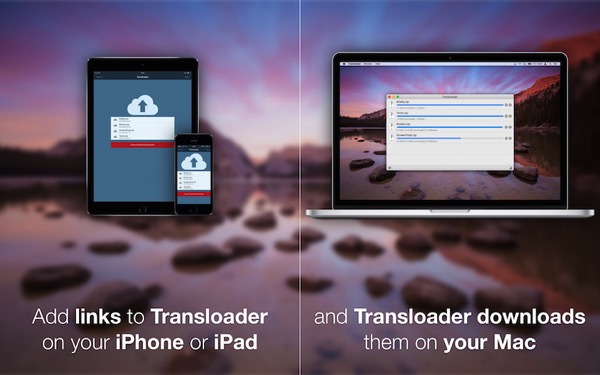
I’m happy to announce today the immediate availability of Transloader 2.1, a significant and important update to the app that lets you start downloads on your Mac remotely from your iPhone or iPad.

Transloader Explanation

I’ve also prepared an App Preview Video for the occasion:

[youtube https://www.youtube.com/watch?v=3VAKEpWVArc]

Easier and more straight forward to use

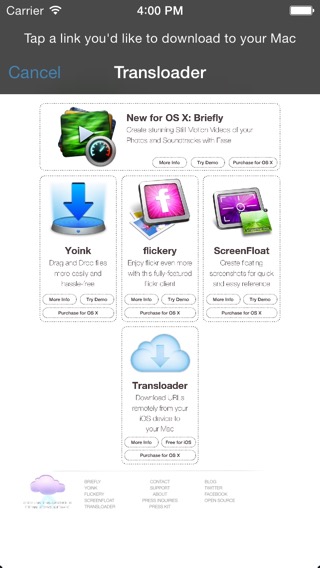
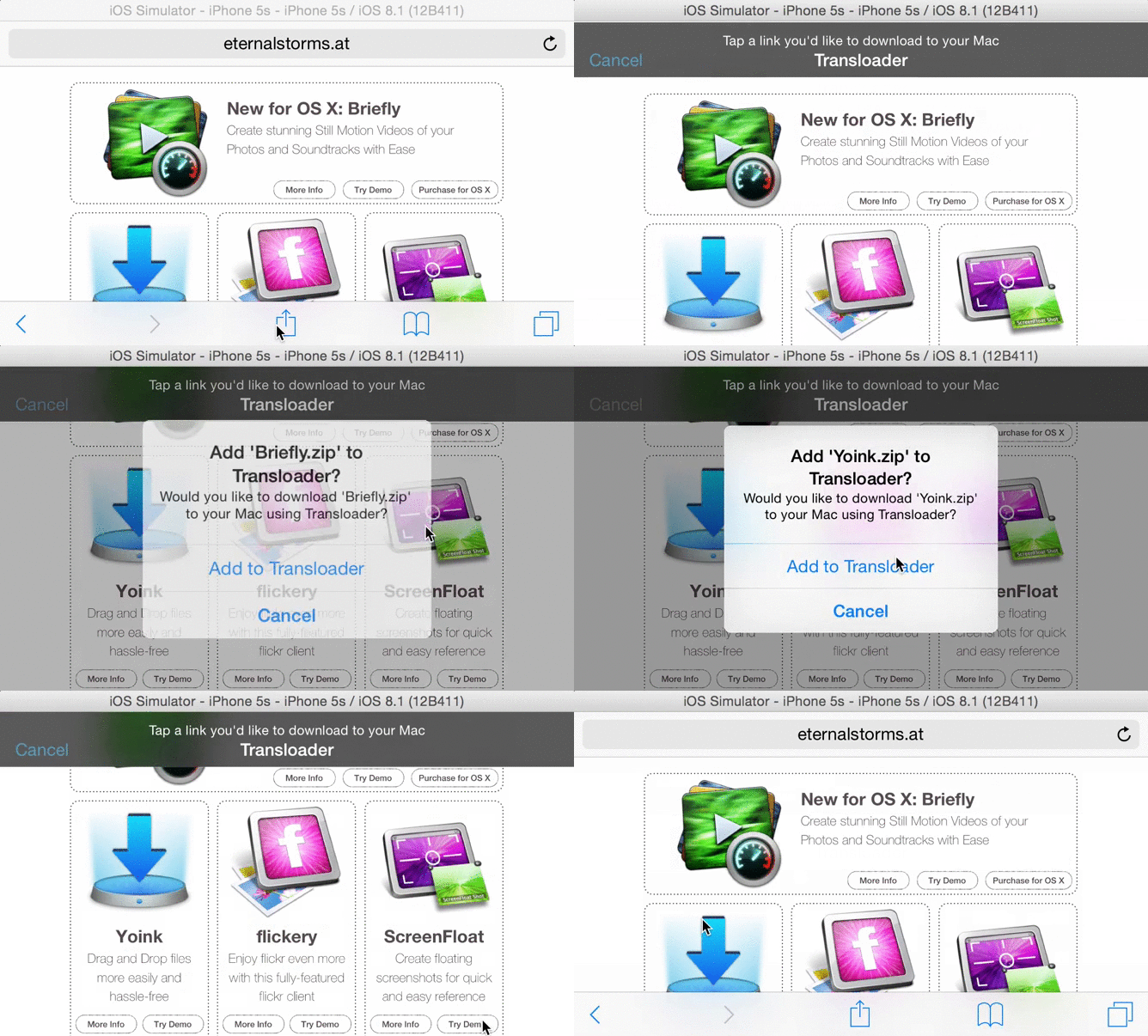
Transloader 2.1 features an Action Extension so you can add links directly from a website you’re browsing – here a short video of the Action Extension in, well, action 😉

[youtube https://www.youtube.com/watch?v=DPuCp9HO5So]

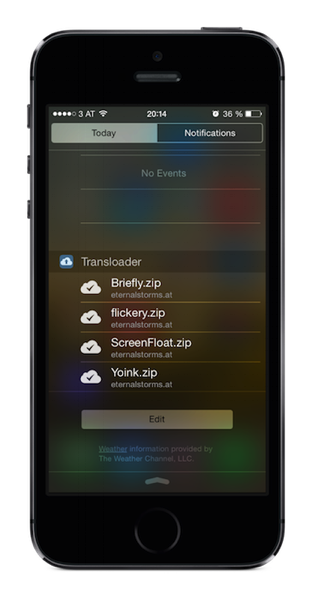
The update also comes with a Today Widget, which offers you a quick look at the state of your downloads right from within Notification Center.

Transloader's Notification Center Today Widget

Improved Feedback

Transloader 2.1 on the Mac will send your iOS devices push notifications when downloads finish or fail so you are always in the know about the state of your downloads.
The Mac app also got a UI overhaul and now fits in perfectly with OS X Yosemite.

On Sale – 65% off!

As part of Two Dollar Tuesday, Transloader is on sale today (March 10zh, 2015) for just $1.99 instead of $5.99 – over 65% off. Head on over and check out the other cool apps as well 😉

System Requirements

For full functionality, iOS 8 or newer and OS X Yosemite or newer are required. An iCloud account is necessary for Transloader to work.

Links

Transloader on the Mac App Store ($1.99; 65% off)
Transloader on the iOS App Store (free)

Transloader Website
Transloader Press Kit (direct download)

I hope you enjoy the update – if you have any feedback or questions, please be sure to get in touch via mail or twitter! I’m looking forward to hearing from you.

—-
My name is Matt, I’m the developer of Eternal Storms Software. If you’d like to comment, you can catch me on twitter here: [twitter-follow screen_name=’eternalstorms’ show_count=’yes’] or by eMail.

Read more

For the upcoming action extension in Transloader, I’m using a UIWebView to show the webpage the user is currently browsing, so they can tap on a link they’d like to download:

UIWebView without zoomTransloader’s Action Extension, displaying a UIWebView

It’s nice, but I wanted to go an extra step. A user might zoom and scroll in Safari before launching the action extension and when they do, the web page would be shown from the top, not zoomed. Here’s how I changed that.

Context and Flow

One of the main purposes of an action extension is to allow a user access to functionality from a different app without a) leaving the current app and b) without leaving the current context (which is more or less the same, but context is the point I’d like to drive home with this post).

In that vain, I thought it would be neat to present the website a user was viewing in Safari the same way in the action extension – meaning the zoom level and scroll position.

I figured, a user browses a site, perhaps zooms in on stuff and when they find a link they’d like to download to their Mac, they press the Share button in Safari and select Transloader’s action extension.

The thing is, the UIWebView of the extension loads the website for itself again and hence starts from the top, not zoomed in. So the user is ripped out of the context, they’d have to scroll and zoom again to get to the same position they had in the Safari web view. I wanted to change that:
A user should see the same part of the website in Transloader’s action extension as the part they were viewing in Safari before tapping the Share button.

Luckily, Apple implemented a way that allows us to do just that.

Java Script Preprocessing

In an Action extension for webpages (action extensions that are displayed in the action sheet if the NSExtensionActivationSupportsWebPageWithMaxCount criteria is met), you can supply a JavaScript preprocessing file that will let you examine the contents of the webpage before your native code is called.

This way, we can extract the current page scale and the scroll position. Here’s how we do that. In the Action.js, we call our native code with these parameters:

arguments.completionFunction({
“pageXOffset”:window.pageXOffset,
“pageYOffset”:window.pageYOffset,
“pageScale”:(document.body.clientWidth/window.innerWidth),
“baseURI”:document.URL
})

– pageXOffset is the horizontal scroll value
– pageYOffset is the vertical scroll value
– pageScale is how far the user has zoomed into the page
– baseURI is the current URL displayed in Safari

With these parameters, we can do what we set out to do – display the web page in the Action extension the same way as the user left it in Safari.

In our implementation file, in the WebView’s delegate method “-webViewDidFinishLoad:”, all we basically need to do is apply these parameters to our own web view:

[self.webView.scrollView setZoomScale:self._pageScale
animated:YES];

[self.webView stringByEvaluatingJavaScriptFromString:[NSString stringWithFormat:@”window.scrollTo(%ld,%ld)”,self._pageXOffset,self._pageYOffset]];

For a complete project of how this exactly works, please scroll down where you’ll find a Xcode Project on Github.

And this is what it looks like in action – notice that after the Action extension is tapped, the website appears the same way as it was in Safari:

UIWebView Zoom and Scroll in Action

Example Project

TL;DR – I uploaded a demo project here on Github.

I hope you can make good use of this code – and if you do, please be sure to let me know! 🙂

—-
My name is Matt, I’m the developer of Eternal Storms Software. If you’d like to comment, you can catch me on twitter here: [twitter-follow screen_name=’eternalstorms’ show_count=’yes’] or by eMail.

Read more

At the end of September 2014, I wrote about upcoming changes in Transloader for iOS.

Transloader iOS 8 Action Extension Icon

Today Widget

In that blog post, I wrote about a Today Widget that you could use to easily paste URLs you had copied to your pasteboard on iOS.
It would look like this:

I was pretty sure this would be the way to go, but after using it for a while and iterating on it, I became more and more convinced that this was not an optimal solution.

It’s not optimal for a couple of reasons.

– Although it’s far better than before iOS 8, where you had to open the Transloader app itself to get things going, the Today Widget approach is still a little cumbersome: copy the link, open Notification Center and tap the + button
– You’d have to do this for every link you’d like to add from a website, for example
– Doing that would erase your pasteboard contents you had copied before
– It takes you out of the app’s context

Action Extensions to the Rescue

So I started looking into Action Extensions. And now, this is possible:

transloaderaction

Exactly. Instead of going back and forth to copy several links from a website to add to Transloader, it can all be done on the website itself.

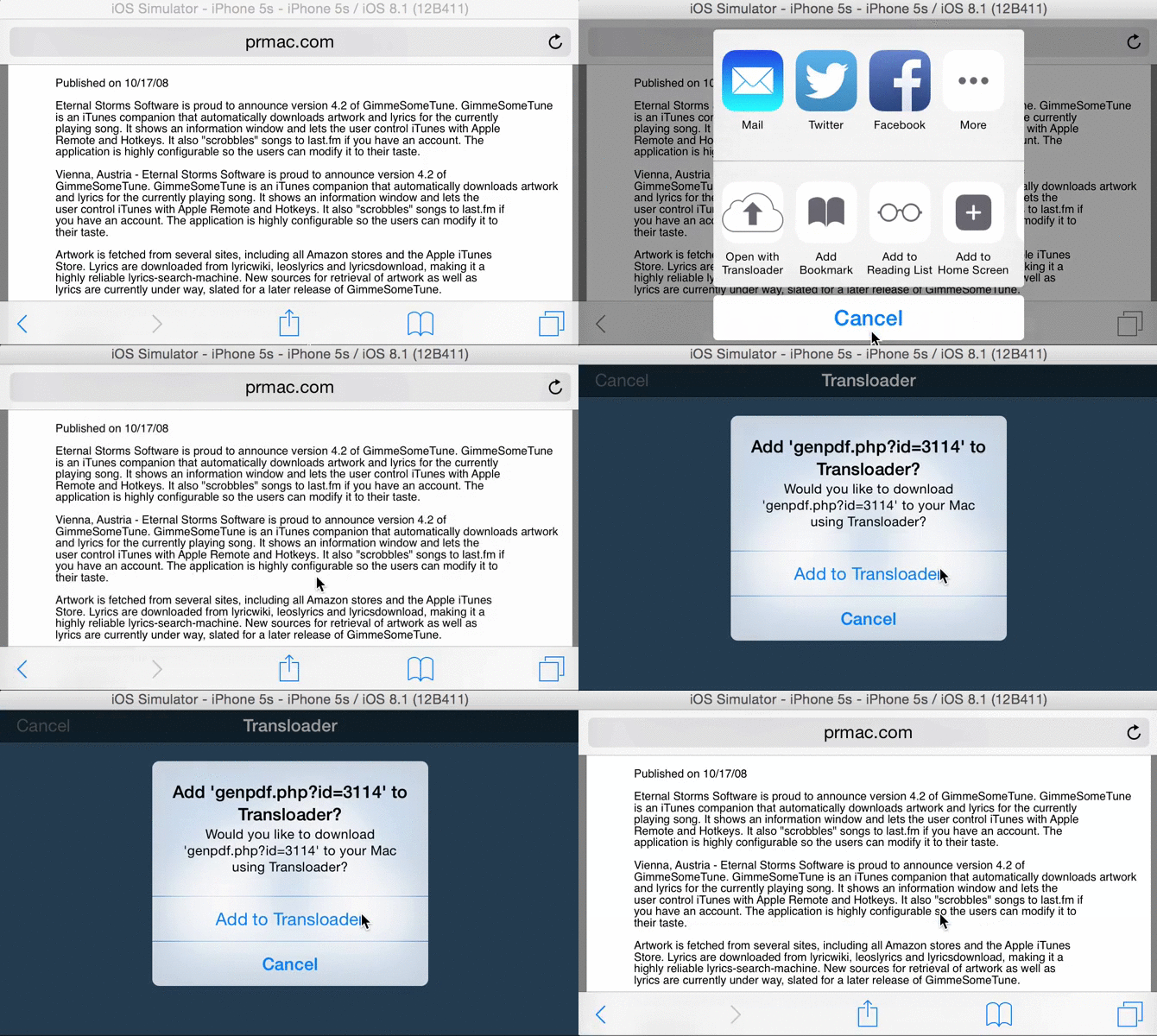
If you’re on a file site itself (for example, you’re viewing a PDF in your browser), you can add it to Transloader more easily as well:

fileaction

Conclusion

I think the combination of these two, the Today Widget (where you’ll still be able to paste links into Transloader, because I think it might still be useful to a lot of users) and the Action Extension will make Transloader very accessible and easy to use on iOS 8.

It will be available soon on the App Store.

—-
My name is Matt, I’m the developer of Eternal Storms Software. If you’d like to comment, you can catch me on twitter here: [twitter-follow screen_name=’eternalstorms’ show_count=’yes’] or by eMail.

Read more

NewImage

© Image by Apple, Inc.

OS X Mountain Lion

OS X Mountain Lion has hit the shelves on the Mac App Store and it’s off to a very good start.

So where are the updates for Yoink, ScreenFloat and flickery?

For all of my apps, I’ve submitted updates to the App Store at the beginning of July but they’re still “In Review” or worse, “Waiting for Review”. Here’s the run down of what’s working or not working on OS X Mountain Lion.

Yoink

Yoink works perfectly fine in the currently available version (2.1.1). The upcoming update is a bugfix and minor feature release.
Nothing really changed for Yoink in OS X Mountain Lion that would break the app.

ScreenFloat

ScreenFloat has some minor issues. It works well, but you’ll notice that the “Launch ScreenFloat at Login” checkbox in the preferences is enabled although it shouldn’t be and will crash the app when clicked.

Another issue is with running ScreenFloat with the Dock icon enabled. Floating shots will not follow you to fullscreen apps or spaces. I’m currently looking into that. In the meantime, you can disable the Dock icon and it will work.

flickery

flickery is the most troubling. Not because of OS X Mountain Lion (some minor issues aside – like, the “Nearby” search doesn’t show up – it works well).

The troubling part is that flickr is shutting down their flickrAuth authorization mechanism by July 31st. Yes, that’s very soon and there’s no update out yet for flickery.
I’ve requested an expedited review by Apple for it and I hope they grant it.

If they don’t (and still, if they do, there’s a chance), it might take longer than July 31st for Apple to review the app. What that means is that authorizing flickery to work with your flickr account will not be possible. Also, although flickr doesn’t explicitly state this, it’s inferred that anything done over the flickr API with an old authorization token (an authorization token is what an app receives from flickr when the user authorizes the app to work with their flickr account) will not work anymore. So browsing, uploading, really anything you can do with flickery, will not work.

Please be aware that the upcoming update does include the new OAuth authorization and will make flickery work again with flickr. Until it is reviewed and released by Apple on the App Store, please have a little patience. I know it’s not ideal, but at this point, I’ve done all I can do.

Concluding,

aside from some minor issues with ScreenFloat and flickery, everything basically works on OS X Mountain Lion. For these issues, updates are currently “In Review” or “Waiting for Review” by Apple and should be released soon.

As for flickery, I’ve requested an expedited review and I urge you one more time to consider having a little patience 🙂 Trust me – it troubles me more than anyone.

Thank you for your time,
Take care,

Matt 

[twitter-follow screen_name=’eternalstorms’ show_count=’yes’]

[twitter-follow screen_name=’flickeryapp’ show_count=’yes’]

[twitter-follow screen_name=’screenfloatapp’ show_count=’yes’]

[twitter-follow screen_name=’gimmesometune’ show_count=’yes’]

Read more