macOS

Yoink Mac App Icon

I’m happy to tell you that today, Yoink 3.2 is available for download from the Mac App Store.
It’s a free upgrade for everyone who’s purchased it before.
You can download a 15-day trial for the app here, even if you’ve tried it before.

What Is Yoink?

Yoink simplifies and improves drag and drop on your Mac.

Simplify.

It simplifies drag and drop by providing a temporary place for files you drag, so you can navigate more easily to the destination of the files.
It’s especially useful when trying to move or copy files between different windows, Spaces or (fullscreen) applications.

Moving a file with Yoink

When you start moving a file in Finder, or app-content like an image from a website, Yoink appears at the edge of your screen, offering a temporary place for you to drag the files to.
Without having to keep the mouse button pressed, you can now get to the destination of your file quicker and easier.

Improve.

Drag and drop is improved in several ways, including:

  • Collect multiple files from different locations you’d like to move to one destination without having to go back and forth
  • Split up a multiple-files-drag so you can move files to different places without having to go back and forth
  • Copy files to multiple locations more efficiently

Customize.

You can customize Yoink’s behavior so it fits in perfectly with your workflow. Aside from having to option to show it at either edge of your screen (at the top, center or bottom), you can set it up to only appear when you drag files to the edge of your screen or to appear directly at your mouse cursor when you start dragging, making drag and drop even faster.

Yoink appearing at the mouse cursor

For applications where you don’t need Yoink, add them to a “blacklist”, so Yoink doesn’t interfere with your work.
A keyboard shortcut (by default, F5) lets you manually show or hide it, should you need it anyways.

What’s New in Yoink 3.2?

Force Touch Support

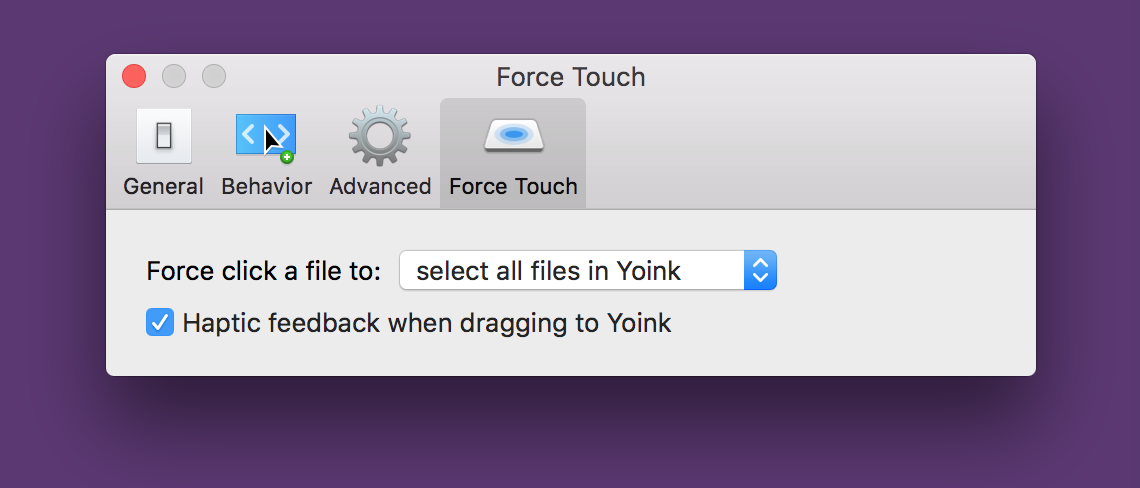
Force Touch in Yoink allows for quick actions, i.e. selecting all files, revealing files in Finder, QuickLooking files, splitting up Stacks and pinning files to Yoink, all available with one Force Click.

Yoink's Force Touch Preferences

For instance, Force Touch makes dragging out all files at once a much nicer process than before. Force Click onto one file and all are selected. Ease up one pressure level and start to drag, and you’ll drag all files instantly.
Additionally, Yoink can give you haptic feedback when dragging to it, so you know when you’ve entered Yoink’s window with files.

Deletion Warning

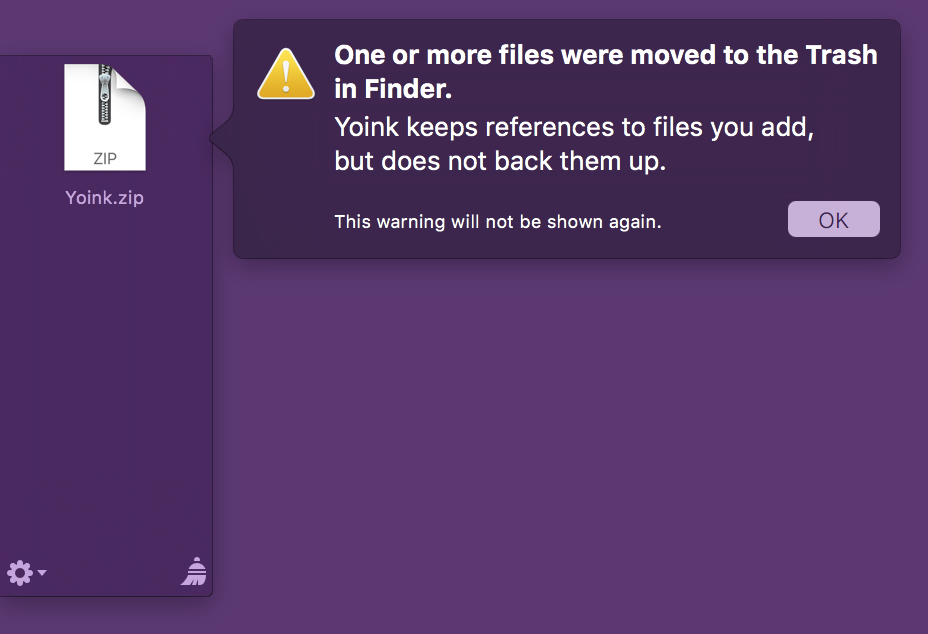
Yoink does not keep a copy of the files you add to it behind the scenes, so it’s important for users to know that if they Trash a file that’s in Yoink, it will be gone if it’s deleted.

Trash warning in Yoink 3.2

This one-time-per-app-launch warning notifies the user about what’s going on.

UI Enhancements

In previous versions of Yoink, when you moved your mouse cursor over a file, this happened:

Yoink 3 Icon Behavior

Some users felt that this results in a moving target (as the icon moves away), and that is definitely a bad user experience (in my defence, I didn’t think of it creating a moving target, because not only the icon, but also the background can be dragged).
Anyway, point taken, I’ve changed it to a simpler, and in the end calmer, animation:

Yoink 3.2 Icon Animation

What you can also see in the two GIFs above, I’ve changed the lock icon so it’s easier to tell if a file is pinned to Yoink or not.
Speaking of the lock, I’ve added a new animation that will let you know that the file can not be removed because it’s currently pinned to Yoink:

Yoink Lock Icon Jiggle

Further Improvements

  • File paths can be copied from Yoink’s contextual menu
  • Reduce Motion Setting
  • Text snippets can now contain images
  • Performance and resource management improvements when accepting files, dragging files out, clearing all items, splitting up stacks, opening the “Open With” menu
  • When Yoink is shown on a different screen than the mouse cursor, the keyboard shortcut (by default, F5) summons it to the screen of the cursor
  • Yoink reflects changes in the Finder’s “Show all filename extensions” setting
  • Mails dragged from Yoink work again with all applications. To create an event in iCal from a mail message, keep the option-key pressed as you drag the mail out of Yoink
  • When a file is re-saved in Finder, Yoink updates its QuickLook Preview Icon
  • When a snippet is added to Yoink, it has a proper filename instead of “Snippet”
  • And many more improvements and bug fixes throughout the application

Pricing and Availability

Yoink 3.2 is available for purchase on the Mac App Store for the price of $6.99 / £4.99 / €6,99.
It is a free update for existing customers of the app.
You can download a free, 15-day demo version here, even if you’ve tried Yoink before.
Yoink runs on Macs with OS X Lion 10.7.3 or newer. OS X Yosemite or newer is recommended.

If you’re interested in writing about Yoink, you can download the press kit here, which contains screenshots, links to a short video and further information. Promo codes are available to members of the press at press (at) eternalstorms (dot) at.

Yoink Usage Tips

To get the most out of Yoink, I’m collecting useful tips and tricks for you on this website.

I’m looking forward to hearing from you and to see what you think about Yoink 3.2. If you like the app, please consider leaving a little review on the Mac App Store, it would help me out a lot!
Should you have trouble with it or have any feedback or questions, please be sure to get in touch, I’d love to hear from you! Thank you.

Eternal Storms Software Logo

– – – Do you enjoy my blog and/or my software? – – –

Stay up-to-date on all things Eternal Storms Software and join my low-frequency newsletter (one mail a month at most).
Thank you 🙂
Read more

In iOS Simulator, you can, via a menu item, quickly simulate memory pressure for the simulated device to see if your app behaves correctly under low memory conditions (releasing caches, cleaning up resources, and so on).

Recently, I had the need for it on the Mac (where such a menu item is not available), while working on an XPC service for Yoink, to see if it terminated properly under certain conditions.

Meet the memory_pressure tool

OS X comes with the Terminal, and with the Terminal come some awesome tools. Among them is memory_pressure. Its man page says it all:

Apply real or simulate memory pressure on the system.

Usage of memory_tool

sudo memory_pressure -S -l critical

What this does is simulate (-S) a memory pressure of a critical level (-l critical).
sudo is needed, otherwise it will probably fail with an “Operation not permitted” error.

memory_tool’s options

-l:   Two levels of pressure are supported: ‘warn’ and ‘critical’.
-p:  For real pressure, this lets you define how much memory should remain free, in percent of total memory.
-S:  Simulate memory pressure, don’t really allocate memory.
-s:   If applying real pressure, this is the duration to wait before allocating or freeing memory.
       If it’s simulated pressure, the system will be maintained at an artificial memory level for this duration.

Read more

In an effort to show preferences for configuring Force Touch in my apps (in particular, Yoink) only when a Force Touch device is actually available, I had to find a way to figure out how to detect Force Touch devices.

If this was iOS, I’d be done by now

On iOS, Apple provides a simple API for this:

UIForceTouchCapabilityUnavailable and UIForceTouchCapabilityAvailable

which you can check by calling UIView’s – (UIForceTouchCapability)traitCollection;. Lo and behold, a simple API like this is sadly not available on OS X. On the Mac, you have to do it yourself.

IOKit is where it’s at

Using IOKit, you can sort of set up a set of properties you’re looking for in a device and see if it returns anything. This does not only include an external or internal keyboard, mouse or trackpad, but also graphic cards, for example. To find out what the right properties are, I downloaded Apple’s Hardware IO Tools for Xcode 7.1 from their developer downloads site (Apple Developer account required) and launched the app IORegistryExplorer.

Digging down the IO Registry

I do have a Magic Trackpad 2 “attached” to my Mac via Bluetooth, so I tried searching for the term “Trackpad”, and sure enough, I saw my internal and external ones:

IORegistry TrackpadsThe Trackpads attached to my Mac, either via Bluetooth or internally.

Having found the Magic Trackpad 2, the next step is to see what properties it offers and if they are unique to the class of the device:

Trackpad PropertiesJackpot!

Sure enough, there it is – ForceSupported: True. I could not find such a key in the internal trackpad’s properties, hinting that it might be exclusive to devices that do support Force Touch. There’s also an entry for “Manufacturer”, which is “Apple Inc.”. Perfect.

Looking for Devices with IOKit

Now all I have to do is filtering devices by the Manufacturer – “Apple Inc.” -, iterate over the resulting devices, and filter out devices that have a DefaultMultitouchProperties key, containing a ForceSupported key with a value of true. If such a device is found, it means a device with Force Touch capabilities is available.

Code Listing #1

In this method, I create a dictionary mDict that is used to find matching devices. In this case, I’m looking for devices with the Manufacturer set to “Apple Inc.”. I query for possible devices using IOServiceGetMatchingServices. I can then iterate over the returned io_iterator_t iterator and recursively over the children in the core of all of this: – (BOOL)_containsForceTouchDevice:io_iterator_t)iterator;.

Code Listing #2

Here, we iterate recursively over iterator’s objects, checking for the DefaultMultitouchProperties key and, subsequently the ForceSupported key (and value).

Testing it with other Trackpads

The code you see above is final. However, in a previous version, all I could use to test it with was my Magic Trackpad 2 – an internal Force Touch Trackpad (the likes of which the new MacBooks and MacBook Pros feature) was not available to me directly. So I sent the first draft of the code to my friend (and fellow developer) Maurice Kelly (@mauricerkelly on twitter) who was kind enough to volunteer as my “test subject”; and – of course – it didn’t work. Turns out I shouldn’t assume the vendorID to be the same (which I used in the first draft just like the Manufacturer to filter the possible results). After leaving it out, it worked fine over all currently available Force Touch Trackpads.

Hot (Un-)Plugging

Sometimes you might want to get notified when devices are plugged in to or unplugged from the Mac. In Yoink, I’d like to display preferences specific to Force Touch if according hardware is available, but not show them if there isn’t any hardware connected that supports it. Also, as a nice touch, I’d like to hide the preferences if according hardware is disconnected and show it again when it is connected. We can accomplish this like that:

Code Listing #3

Sandbox

The code works just as well in the Sandbox environment, these entitlements have to be set, though, for the notifications to work:

Sandbox Entitlements

com.apple.security.device.usb and com.apple.security.device.bluetooth

Future Proof?

I’m not sure this code is future proof. The basic APIs will stay around, sure, but it all depends on the keys DefaultMultitouchProperties, ForceSupported and their according values which are not defined in the IOKit header files, which I unsuccessfully searched for constants pertaining to force/pressure. So, depending on this, the code might break with future versions of the Force Touch Trackpad and I’ll have to keep testing it as Apple releases new hardware. Nevertheless, I’m quite happy with the code and it works very well.

Getting the Source Code

I’ve uploaded a sample project to my server, you can download it here. The category on NSApplication in which this is available can be downloaded from Github. The example app is pretty simple:

Force Touch Device Detection Example App Screenshot

At launch, it asks if a Force Touch capable device is available and displays an according message. If subsequently the availability status changes, the message will be updated accordingly.

If you’d like to get in touch, you can mail me or write me on twitter. I’m looking forward to hearing from you 🙂

Read more

OS X 10.11 El Capitan

I’m happy to say that all my applications, Yoink, Glimpses, ScreenFloat, Transloader and flickery are compatible with OS X 10.11 “El Capitan” and work perfectly on Apple’s new operating system, which will be released tomorrow, September 30th.

I’ve tested all my apps on the Golden Master of the upcoming Mac system upgrade and haven’t found any showstoppers or issues.

Should you, however, discover anything you feel is a bug, an annoyance or an issue, please be sure to get in touch with me either by mail, twitter or Facebook – I highly appreciate your help.

I hope you’ll enjoy tomorrows upgrade of OS X, I know I am very much looking forward to it!

Read more