macOS

For Briefly, I needed a nice, subtle animation for switching between the detail soundtrack view and the reorderable list view. In OS X Yosemite 10.10.3’s Photos.app, I noticed something I liked very much.
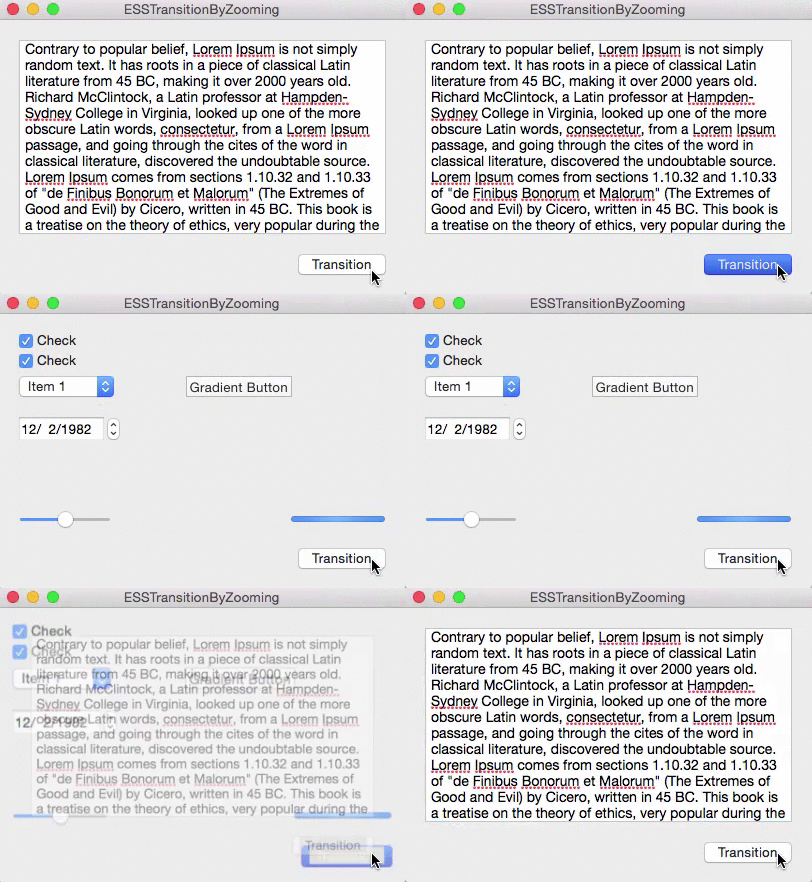
When going into an album, for example, the current view is zoomed out of focus and the new view is zoomed in.

Zoomtransition Animation Gif

NSView+ESSViewCategory

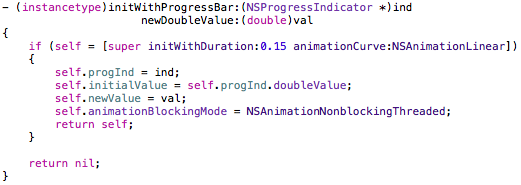
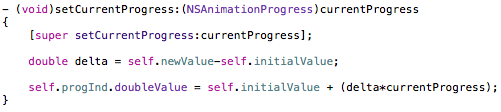
I wrote a little category on NSView to do just that, it’s a one liner (ironically, in this pic, it’s more than one line) :

Line of code

It’s pretty self-explanatory. You pass in the view you want to transition from and the one you want to transition to, the type of transition (zooming in or out), the duration and an optional completionHandler that’s called when the animation ends.

Alternatively, it’s also available as an instance method where the view you call this on will be passed into the class method as fromView:

Instancemethod

The Views

For the transition to work, fromView has to be in a view hierarchy, toView shouldn’t. They should be the same size, otherwise more work on your part is necessary (which I had to do in Briefly because the NSPopover the views reside in resizes before / after the transition), but either way the code provided should give you a nice head start.

fromView’s superview is temporarily set to have a CALayer to make use of Core Animation during the transition. After the animation ends, the superview’s wantsLayer – state is reset to what it was before the animation. If we didn’t do this, the animation would appear sluggish.

ESSViewZoomTransition

As you can see in the gif above, there are two types of the transition:

ESSViewZoomTransitionZoomOut – the transition from the textView to the view with the checkboxes.
ESSViewZoomTransitionZoomIn the transition from the checkbox-view to the textView

How To Use NSView+ESSViewCategory

You’ll have to first add the NSView+ESSViewCategory.h and *.m files to your project.
Please note that the category imports <Quartz/Quartz.h> for Core Animation’s CAMediaTiming class, so you might have to add that framework to your project, too.

fromView
It has to be inside of a view hierarchy. Fades out during the transition.

toView
Can be in a different xib file (for example, a NSViewController) or in the same as fromView. It’s important that it is not already on screen somewhere. Fades in during the transition.

Once you have set up your views, either call the class method and pass fromView and toView as well as the other parameters or call the instance method on fromView.

How It Works

The method creates an NSImage of both toView and fromView, puts them into two NSImageViews that have the same frame as the views and animates those two NSImageViews accordingly (calling imageView.animator.frame = …; and imageView.animator.alphaValue = …; )
Because fromView’s superview temporarily gets a CALayer, .animator is powered by Core Animation, which makes for a much smoother animation than doing the same without a layer-backed view.

ImagecreationCreating an NSImage of toView.

So the views themselves aren’t actually resized, they’re just screenshotted, removed from view as we place the NSImageView on top of it, creating the illusion that nothing happened. Then we animate the NSImageViews and insert toView after the animation is done, removing both NSImageViews.

The Source Code

The repository (a sample OS X app) is available on Github.

It was developed (and tested) on OS X Yosemite 10.10.3 using Xcode 6.3.1, but should work on earlier versions of the operating system.

I have some more source code available here (or directly on my github profile page) if you’re interested. If you have any questions or feedback regarding my open source projects, please be sure to mail or tweet me – I’m looking forward to your feedback!

Enjoy!

Read more

ESSSquareProgressIndicator animating

What Is ESSSquareProgressIndicator?

It’s an indeterminate progress indicator originally developed for the iOS game ZEN.

It uses Core Animation (specifically, CAShapeLayers) to do its job and it’s pretty straight forward.

CGPathRefs, CAShapeLayer

CAShapeLayer has two animatable properties – -strokeStart and -strokeEnd (with a minimum value of 0.0 – start of path – and 1.0 – end of path). Going beyond 1.0 or below 0.0 doesn’t work.

So when trying to animate those values along a rectangular path – which was the first thing I tried when creating this – you do get a nice animation, but it ends at the 0.0/1.0 (which is, basically, the same) mark. So you end up with something like this:

glitchy progress indicator animation

The goal, then, was to animate beyond 1.0. The solution I came to – I’m sure there are other ways – was to use a second CAShapeLayer that animated alongside the first for the last/first part of the animation.

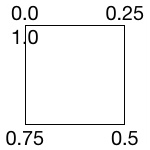
For a square, the values of the CAShapeLayer’s -strokeStart and -strokeEnd are as follows (starting at the top left corner):

CAShapeLayer strokeStart strokeEnd values

The CGPath begins and ends in the top left corner because I drew the path that way (you could make it start in the lower left corner or in the middle of a side, it all depends on where you start the CGPath with CGPathMoveToPoint).

The progress indicator starts at the middle of the left line and reaches to the middle of the top line. These are the two CAShapeLayers at work. The left part is one shape layer, the top line is another. I’ll do this in pictures I drew in code so it’s simpler to understand (the lines represent where the layer animated to, the dots are the invisible rest of the square).

Animating

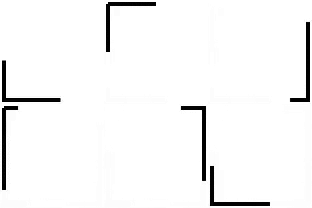
Animation Part 1We start at this position. The line to the left is layer2(strokeStart:0.875, strokeEnd:1.0), the line at the top is layer1(strokeStart:0.0, strokeEnd:0.125).

Animation Part 2The transition to this is the reason we need two layers as we can not animate one layer beyond the 1.0 value.
So we animate layer2 to (1.0, 1.0) and at the same time animate layer1 to (0.0, 0.25) which makes it look like one line moving.

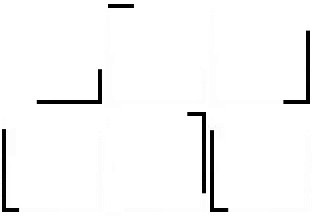
Animation Part 3This next part is easy. We animate layer1 to (0.75, 1.0).

Animation Part 4Lastly, we animate with two layers again to get to the initial position so we can repeat the whole thing from there on.
We animate layer2 from (0.75, 1.0) to (0.875, 1.0) and layer1 from (0.0, 0.0) to (0.0, 0.125) at the same time, again making it look like one line moving.

The Source Code

The repository (a sample iOS app, but the class works the same on OS X) is available on Github.

It was developed for iOS 7.1 but should work on earlier systems, and has been tested on OS X Yosemite, but should work on earlier systems as well.

You just drop in an ordinary UIView or NSView and set its class to ESSSquareProgressIndicator. Done. You can then set the color and stroke width right within Interface Builder thanks to the fairly new Xcode macros IB_Designable and IBInspectable.

Open Source

I have some more source code available here (or directly on my github profile page) if you’re interested. If you have any questions or feedback regarding this progress indicator, please be sure to mail or tweet me 😉

Enjoy!

—-
My name is Matt, I’m the developer of Eternal Storms Software. If you’d like to comment, you can catch me on twitter here: [twitter-follow screen_name=’eternalstorms’ show_count=’yes’] or by eMail.

Read more

Hi, all.

Yoink 3 is around the corner, currently in the depths of Apple’s review team, waiting to get its bare bits and bytes dissected and inspected.

In the meantime, I’d like to share what’s new about this version.

Screenshots

Yoink 3

The very first thing you’ll notice about Yoink 3 is its fresh, new interface that fits in perfectly with OS X Yosemite.
My graphics designer Alexander Käßner has done a wonderful job on rejuvenating almost every icon throughout the app – including the App Icon:

Yoink App Icon

One more screenshot of the app in action, showing off the new buttons to interact with Yoink:

Yoink in Action

Functionality

Yoink 3 will be out soon and when it is released, I will share more about its new functionality and improvements.

You can download a free, 15-day trial of Yoink v2.5.2 from my website (the trial time will be reset for version 3) and purchase Yoink 2.5.2 on the Mac App Store (version 3 will be a free upgrade to existing users).

 Enjoy 🙂

—-
My name is Matt, and I’m the developer of Eternal Storms Software. If you’d like to comment, you can catch me on twitter here: [twitter-follow screen_name=’eternalstorms’ show_count=’yes’] or by eMail.

Read more

Hi.

As you’ve probably heard, iOS 8 is hitting the internet today. With it comes the new iCloud Drive. But there are caveats, especially, since OS X Yosemite isn’t available yet.

As Nik Fletcher of Realmac Software says in this article:

If you upgrade to iCloud Drive, you will only be able to sync with devices running iOS 8 or OS X Yosemite

Or the DayOne team in their knowledge base:

To use iCloud for syncing Day One, all of your devices must be using iOS 8 or Mac OS X 10.10 (Yosemite).

So, for Transloader, it’s the same:

If you need to sync via iCloud with a Mac or an iOS device that can’t upgrade to iOS 8, consider not upgrading to iCloud Drive to continue syncing. Once OS X Yosemite is available, you can upgrade then and syncing will work just as expected.

Basically, if you’d like to keep using Transloader on with iOS 8, it’s better to wait with upgrading to iCloud Drive until OS X Yosemite is available.

—-
My name is Matt, and I’m the developer of Eternal Storms Software. If you’d like to comment, you can catch me on twitter here: [twitter-follow screen_name=’eternalstorms’ show_count=’yes’] or by eMail.

Read more