Please join me on a journey through the past 2 years, from the idea of Briefly to the development and eventual release of the app 🙂
The Idea for Briefly
The idea for Briefly was literally fed to me on a golden spoon.
Well, not literally. Literally, it was hurled at my head with a tweet by a twitter user I sadly can’t remember (believe me, I’ve tried digging up that tweet again, but I wasn’t successful).
I only remember the content (and I’m paraphrasing, because I don’t remember it word by word)
It should be way easier to do this [link to a still motion video I can’t find anymore either]
And that’s where I got the idea, because the tweeter was right – it should be easier to do this kind of video.
Getting the idea for Briefly was, thus, a case of “right place, right time” – in this case: twitter.
Existing Apps?
You might say – why create this app? There’s iMovie (on both OS X and iOS), there’s Final Cut Pro… Why develop an app that does less?
As I stated in my (also-pseudo) post-mortem of Transloader, I believe in making apps (even if they’re small ones) that improve a particular workflow or fix a particular need.
So yes, you can use iMovie to make a still motion video fairly easy. But I figured it could be even easier and faster. Thus I stuck with the idea and started development of Briefly.
It was a gut decision to go for it as I don’t have time nor the will to do much (or any, really) market research and stuff like that. I’d rather spend my time working on code.
So it could have gone either way – have a good or miserable reception (and even if you do market research, it still can go either way).
I always pick projects this way. There are two types of apps I develop:
Apps I have a (sometimes desperate) need for myself (ScreenFloat, Yoink, Transloader) and apps I think others might have a need for (flickery, Briefly).
On apps I need I usually start working right away. If I release them to the public is a different question, though. If I think it’s too niche or too small I usually don’t bother.
When I come up with an idea for an app that others might benefit from, I usually let it ripe in my head for a few weeks. I find that if I let it work out in my head, I either have less and less doubts about it or more and more. If I have too many doubts, I discard the idea for now.
If the picture of the app becomes clearer through this process, I make a move on it and start working.
Still Motion Videos?
I hear you say – Still Motion videos? What’s that?
After I released Briefly, I’ve been told that Still Motion videos aren’t really a thing, that it’s not a correct term, that time lapse would be the right term to use.
Yes, with Briefly you can create time lapse videos. Or stop motion videos. But what do those two types of videos have in common?
The photos are connected to each other. They are a series of photos correlating with each other, creating an animation or sense of movement.
But that was not the main focus for me (contrary to what you might think watching Briefly’s intro trailer).
The focus, for me, was still motion videos, which basically are the same as stop motion videos (as in, photos shown in rapid succession) but the photos don’t have to correlate with each other. They can be of completely different things.
Because that’s what the video in the tweet I got the idea from was. It was a video of hundreds of vacation photos shown for just a fraction of a second with a soundtrack. That became my goal for this app.
Plus, it’s a term on wikipedia. So it must be right. Right? Right? 😉
Development
I began development of Briefly in October 2011. That’s not a typo. It took me almost two years to release this app. Here’s why:
First off, Briefly is not my only app.
In October 2011, I have flickery and ScreenFloat to take care of. I’m also working on Yoink, Transloader and flickery 2, with Yoink being in the final stages of development (released in late 2011) and Transloader taking me more than another year to complete. flickery 2 is still in development.
Secondly, Briefly depends on two frameworks I created.
One is for flickery 2 (because in Briefly, you can import photos from your photosets on flickr) so I had to complete certain portions of flickery 2 before I could continue development on Briefly.
The other one is ESSVideoShare (available as open source here). I had to create that framework first so I could implement sharing functionality in Briefly.
And last but not least, support for Instagram, which took some time as well. There were a few changes in the API when I wrote the integration, so I had to keep adapting.
That alone took me a couple of weeks to get done.
Prototyping
I started off creating the backend of Briefly, which is the video creation part.
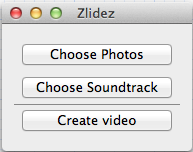 First interface for Briefly, then called Zlidez
I began developing the backend with QTKit, which, in hindsight, was not a good decision. Actually, it cost me two weeks, only to decide later to use AVFoundation instead.
AVFoundation is undoubtedly the future of audiovisual media frameworks on OS X and iOS. When you watch the WWDC videos, the message is clear. Not using it was a mistake because QTKit would get deprecated some time and, more importantly, is not available on iOS. When I started development of Briefly, I hadn’t considered bringing it to iOS as well, but it later struck me that it would be a good fit for the platform.
Moving to AVFoundation from QTKit
Moving to AVFoundation from QTKit was a matter of delete and re-write. AVFoundation is quite a different beast and it didn’t make much sense trying to refactor what I had written for QTKit.
So I started from scratch. AVFoundation has a steep learning curve – at least to me. “Simple” things like adding an image to a movie is very different from QTKit, where it’s a matter of
– (void)addImage:(NSImage *)image forDuration:(QTTime)duration withAttributes:(NSDictionary *)attributes
This is far more complex in AVFoundation. It’s a matter of setting up an AVAssetWriter, AVAssetWriterInput, AVAssetWriterInputPixelBufferAdaptor and adding your samples to that pixelBufferAdaptor.
Quality Output
I spent the most time of the development on assuring Briefly creates the best possible output – which should be the priority #1 for any content-creation app, anyway.
First and foremost, I wanted to eliminate the occurrence of black borders in the video itself (if they occur in fullscreen playback, that’s nothing I can avoid) all while keeping it rendering quickly (especially on iOS devices).
I was in contact with three photographers to see what they thought about it and they helped shape the output a great deal. I must admit, I don’t know much (if anything at all) about photography so I was dependent on their input.
Soundtracks
Originally, I had planned to include a couple of royalty-free soundtracks with Briefly. But I seem to have bad luck communicating with license holders in general.
I have quite some experience regarding this, coming from GimmeSomeTune. No one wanted to talk to me about that, either, and the same happened with Briefly.
I wanted to get in touch with about 5 different “soundtrack-websites”. Not one replied. So I moved on. For now, users can choose soundtracks from their hard drives or iTunes library.
This might change with a future update as, since the release of Briefly, someone got in touch with me about that. We’ll see where it goes.
At least we made first contact 🙂
What was important to me regarding soundtracks is that they automatically fade out if they are longer than the video, without the need of input from the user.
Designing Briefly
My goal was to be able to create still motion videos hassle-free in as little steps as necessary.
For Briefly, that was:
1) Choose the photos
2) Choose the soundtrack
(I don’t count clicking “Create” a real step).
I wanted an app where you could do everything you needed in one window. No panels, no inspectors, etc.
‘No preferences’ plays into that as well.
I don’t want users to have to think about what speed is best, in what order the photos should be displayed (Briefly automatically sorts added photos by date), what format it should be, if the soundtrack should fade out at the end over what period, that sort of thing.
The only real adjustment users can make is the video resolution (Auto, 240p, 360p, 480p, 720p, 1080p).
It was actually only an output test for myself and I had planned not to use it in the release, only providing the “Auto” option. I can’t say exactly why I changed my mind and decided to leave it in. Probably because I wanted to let users know somehow that Briefly would produce videos at these resolutions and if “Auto” was chosen, Briefly would figure out the best one.
The popup is a slight break from the “Briefly figures it out for you”-concept.
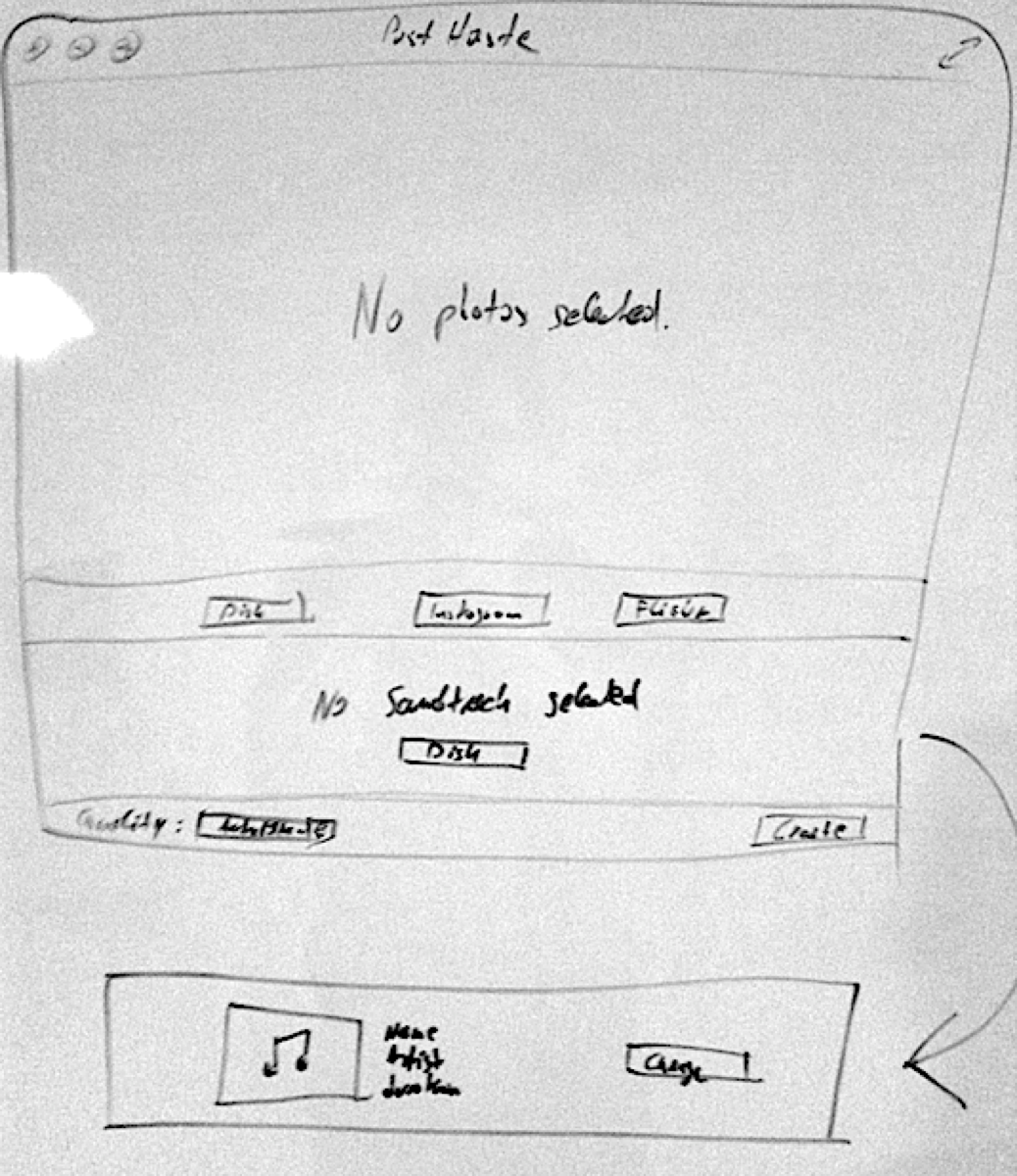 First concept for Briefly’s interface (Briefly was then called PostHaste)
This first concept of Briefly’s interface is pretty close to what I released, though obviously, it was optimized to put the content in focus, not the interface elements.
For example, we (my designer, Alexander Käßner and me) fused the huge “No soundtrack selected” area into the bottom bar, between the Quality-popup and the Create button, making more place for user-selected photos.
The first iteration of the interface was this:
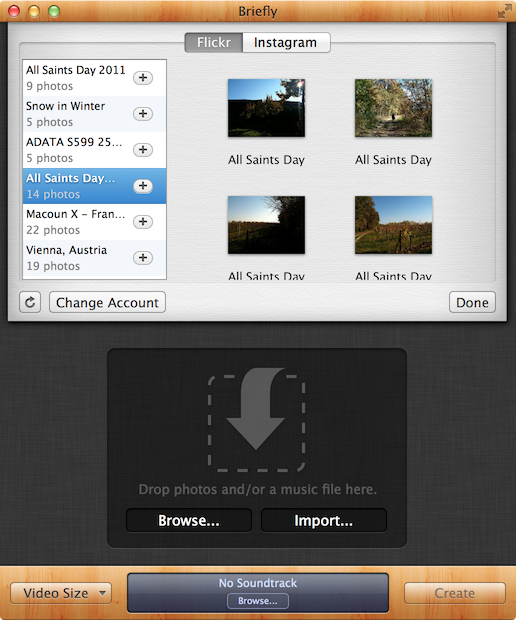 First iteration of Briefly’s interface with wooden textures
When Alex and I started out designing the interface, I was pretty keen on the wooden textures. I don’t know why. I just liked them (and I still do, though I must say the release version looks much nicer).
Notice that the buttons Browse… and Import… are in the middle of the window and would vanish when photos were added. So once the user selected photos, additional photos could only be added through the File menu in the menu bar or drag and drop. Not a good design decision (especially for novice users), so we put the buttons in the title bar of the window (relatively close to release of the app) so they would always be accessible – except when in fullscreen mode, then they would disappear.
The screenshot above also shows the import view (which is pretty close to what shipped in the release version).
The import view started out as a window sheet, attached to the main window (like an open/save dialog). And it would have been fine, but there’s one problem – it makes drag’n’drop difficult because a sheet usually covers an area of the window it’s attached to.
I wanted users to be able to drag and drop from the import sheet to the main window and make multiple imports without the sheet closing every time. So the sheet had to go.
We put the import sheet into the main window as a view, so the content below it resizes when it’s shown and now users can drag and drop from the import view to the main window and click on “Import” multiple times without dismissing the import view.
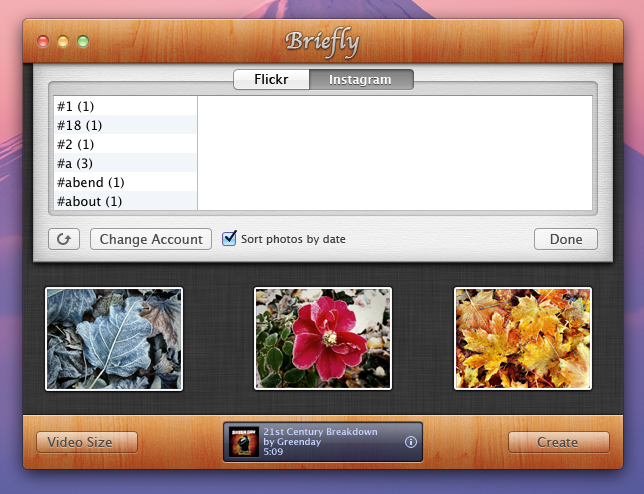 Another, earlier screenshot of a wooden Briefly
Pretty close before release, I decided against the wooden textures. I think I found it too distracting. The focus should always be on what the user’s working on, not the interface.
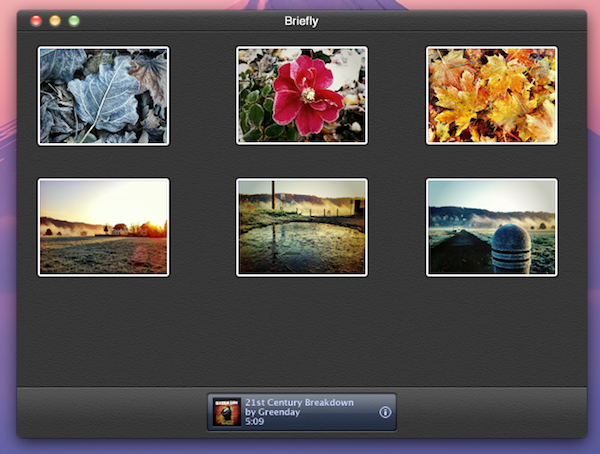 A darker version of Briefly
What you see in the screenshot above is a first draft of a darker, less distracting Briefly. It is quite a difference. And one more iteration of this darker interface is what’s in the release version today.
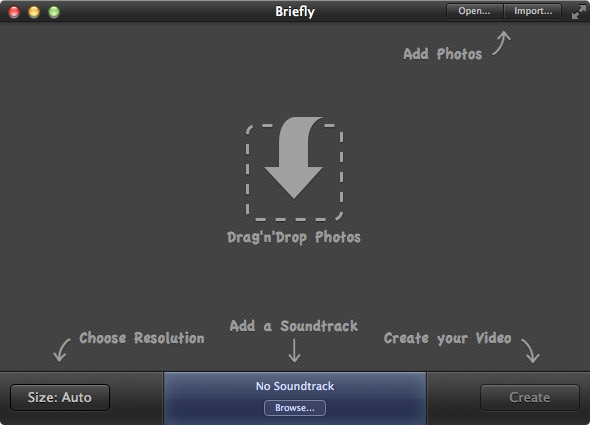 We decided to go a little flatter and less texture-y.
We got rid of the title- and bottom-bar noise-texture and enlarged the soundtrack view a little bit to align with the top of the bottom bar and the bottom of the window giving it more space to breathe.
First Launch Experience
When you first launch Briefly, this is what you see:
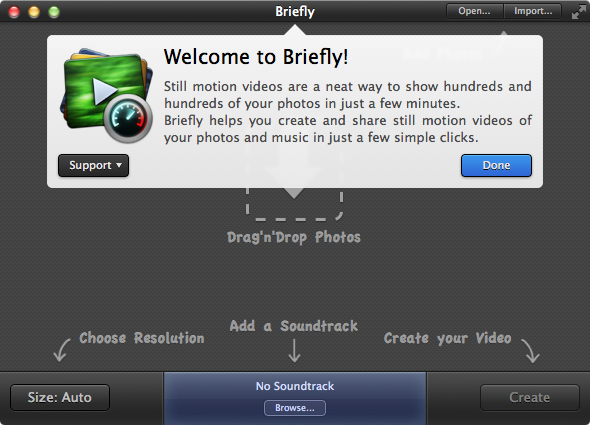 Briefly’s UI when launched the first time
The popover you see in the screenshot used to be a sort of tutorial, instead of the arrows and explanations you can see underneath in the release version.
It would jump from UI element to UI element, explaining what each element does. Unnecessary. With the way it is now (the arrows), it’s much better.
For one because it’s always there when the window is empty, letting the user know what to do without them having to open up the tutorial again (and perhaps struggling to find a way to do so).
Secondly because a popover that jumps around is nauseating.
Saving
I designed Briefly as a one-shot app – add photos, a soundtrack, create the video and repeat with different photos and soundtrack. An app where you wouldn’t go back to past projects and redo them.
There’s no projects, no documents, no saving.
The only saving that happens is of content that hasn’t been turned into a video yet. So if you select photos and/or a soundtrack and then quit Briefly, those items would still be there on the next launch.
This could easily be turned into a Briefly-document to be edited later at any time and I might do so with a future version of Briefly.
The data saved is very small because all it does is take the paths (actually, NSURL bookmarks) and save them for later use.
Naming Briefly
Before finally coming up with and settling on Briefly, I went through a number of names.
The first name I had was “Zlidez – the z stands for zpeed”. I moved away from that because… it sucks.
Another was PostHaste – though already taken, as I later found out.
The name I absolutely loved was Momento – a portmanteau of momentum (for speed) and memento (i.e., photos). Sadly enough, this was also already taken.
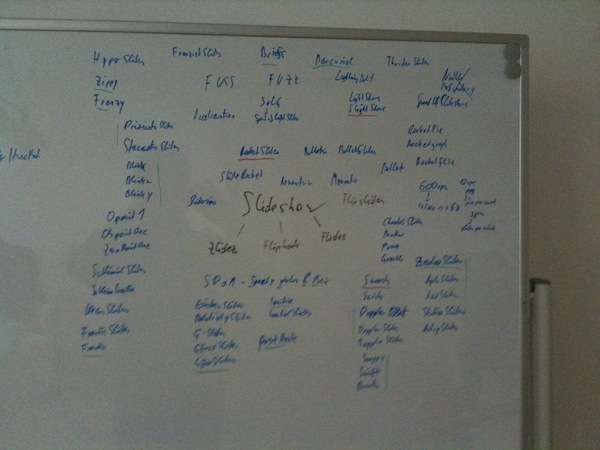 Brainstorming session for Briefly’s name (notice that it isn’t on there)
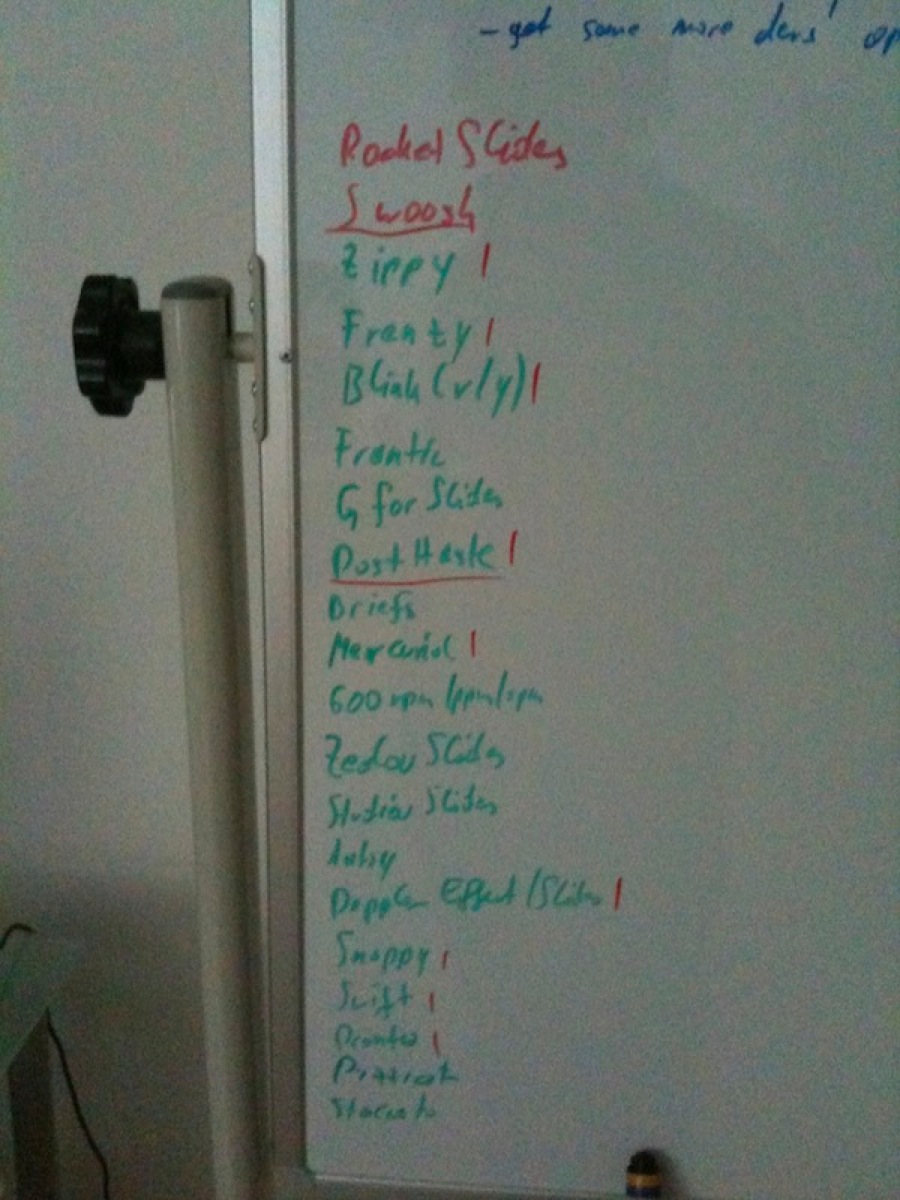 A closer selection of Briefly’s former names
As with most of the names for my apps, Briefly came to me out of the blue and I think it works very well.
Afterthoughts
I am very happy with how the app turned out. The reception has been great, although there are complaints about the rate at which photos are shown in the videos created with Briefly (although it says so in the description of the app on the App Store – “photos are shown for the fraction of a second”).
It got featured by Apple (and as of this writing, still is) on the Mac App Store front page in the “New & Noteworthy” category:
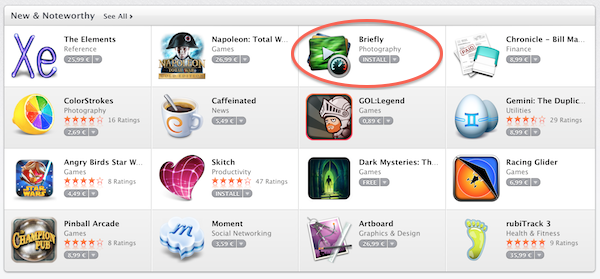
and received nice reviews on TUAW, Cult Of Mac and lots of others.
Working with Alex Käßner again has been a blast, but I knew it would be, coming off of Transloader, where he did excellent work as well.
Now we’re working on Briefly for iOS, which will be available later this year for iOS 7.
Thank you for reading,
Take care,
Matt
[twitter-follow screen_name=’eternalstorms’ show_count=’yes’]