Apps

Yoink for Mac Usage Tip #8

The following explains how to add attachments directly from Mail.app into Yoink.
For more Usage Tips like this, click here.

Today, I received an eMail from Sandro G. asking me if there was a way to quickly add mail attachments from selected mails in Mail.app to Yoink.

The Problem

Sandro frequently adds attachments from mail messages in Mail.app to Yoink but says it can be cumbersome with lots of mails with a couple of attachments each.
I agree, having to select each mail message with an attachment, scrolling down and dragging each attachment to Yoink can take a lot of time.
Instead, he says, he’d like a way to just select the mail messages that contain the attachments, ideally press a keyboard shortcut and let Yoink do the rest, saving nerves and, most importantly of all, time.

The Solution

As with the “capture screenshots to Yoink”-problem, where Bogdan V. wanted to be able to take screenshots that automatically end up in Yoink, Automator seemed like a good solution for this.

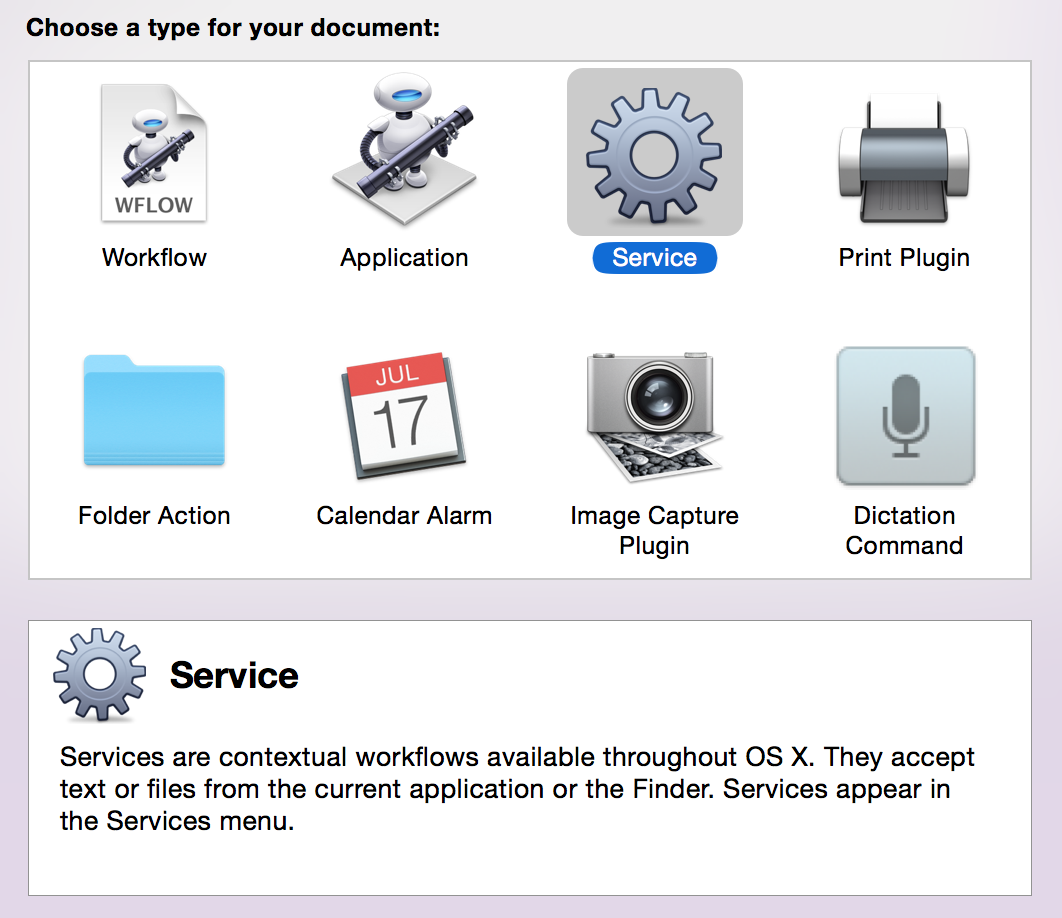
I launched Automator and created a System Service – easily accomplished by creating a new project and selecting Service in the resulting dialog.
A system service is something you can either access through a contextual menu or by the applications Application menu -> Services, containing context-aware services, for example “Look up in Dictionary” or “New Email with Selection”.

Automator - New Project DialogAutomator’s New Project Dialog. Select Service and click on Choose.

The Automator Workflow

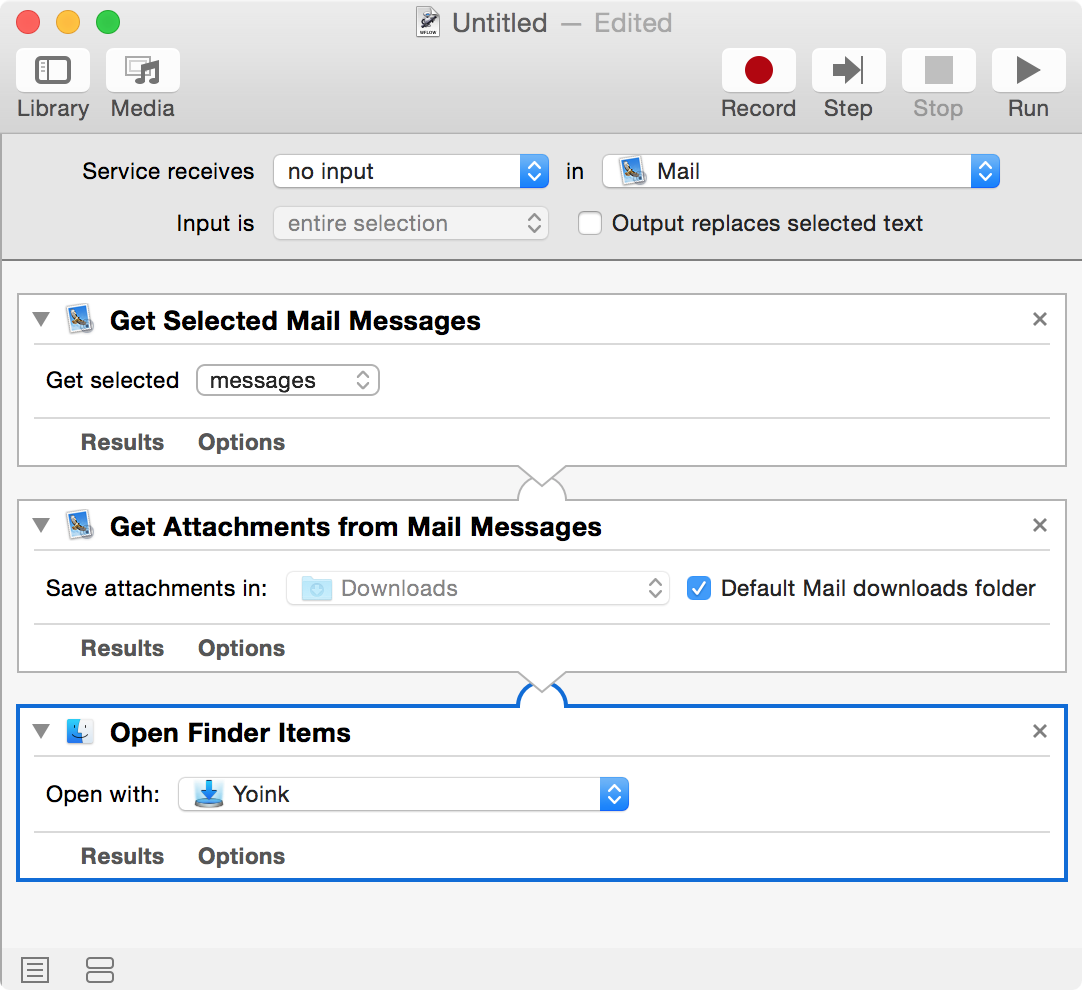
Automator - Finished workflowThe finished workflow.

Let’s go through it from the top. Specify the service to receive no input (as the other possible values don’t apply) and select Mail as the target application the Service should be available in.
Now we need three actions:

  1. Get Selected Mail Messages – creates a reference to the currently selected mails in Mail.app
  2. Get Attachments from Mail Messages – uses the references created before and saves their attachments to a folder, in this case the Default Mail downloads folder
  3. Open Finder Items – Action 2 passes the attachment files to this action, where we ask Yoink to open those files, resulting in them being added to Yoink’s files

Installation and Keyboard Shortcut

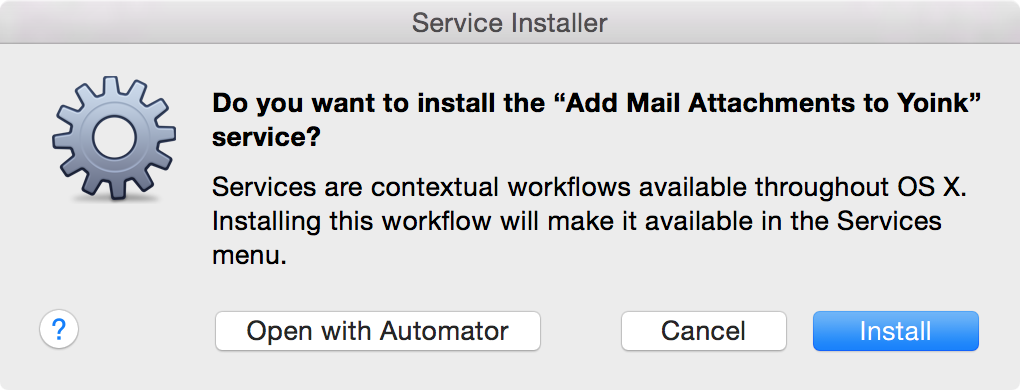
Once you save it, it should be automatically saved into your Services folder. If not, double-click the saved file and it should prompt you with this dialog – click Install and it should be installed correctly:
Automator - Service Installation
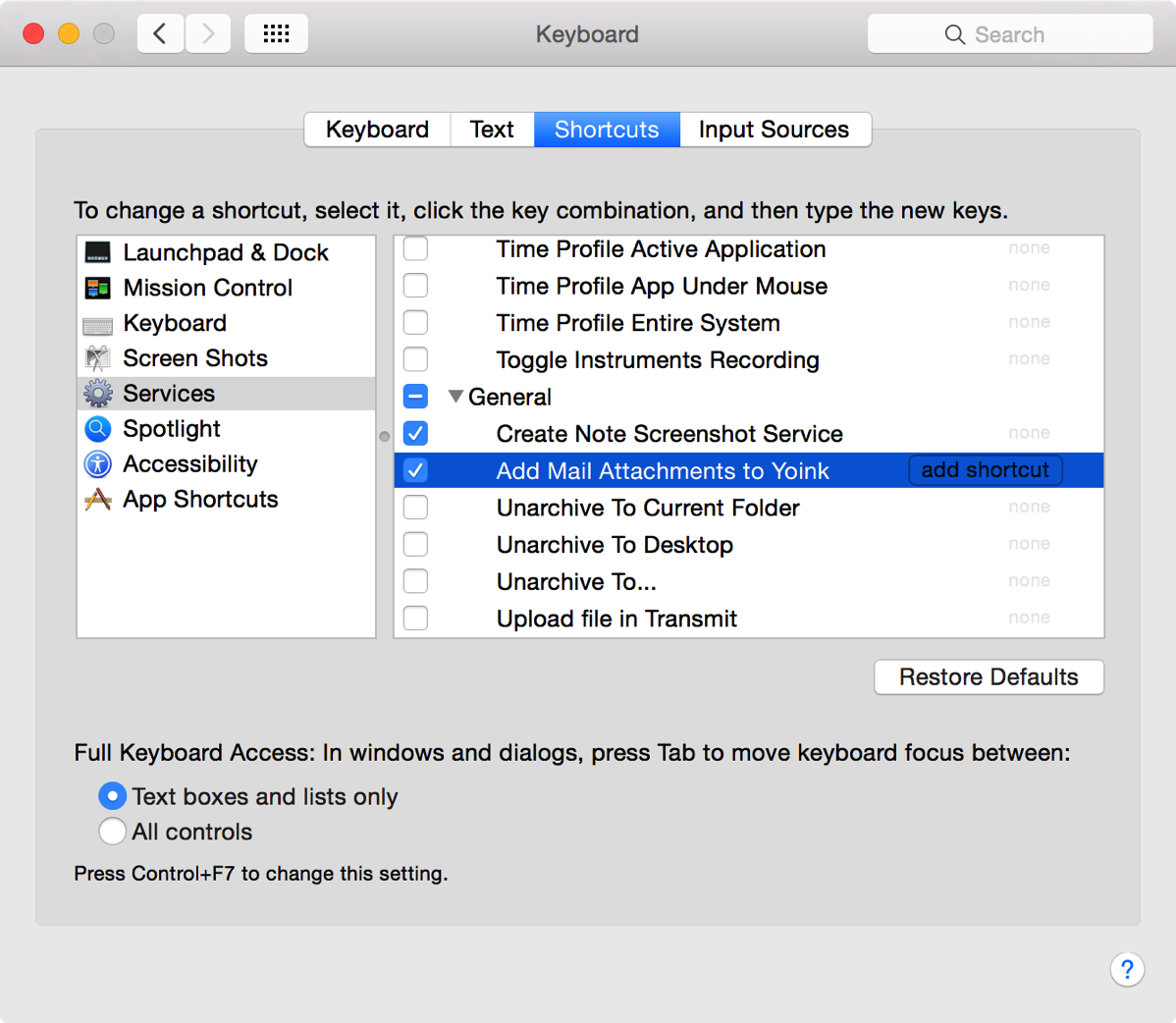
If you’d like a keyboard shortcut, it’s quickly done. Launch System Preferences, select Keyboard -> Shortcuts -> Services, scroll to find the service and set up your shortcut:
Service - Keyboard Shortcut
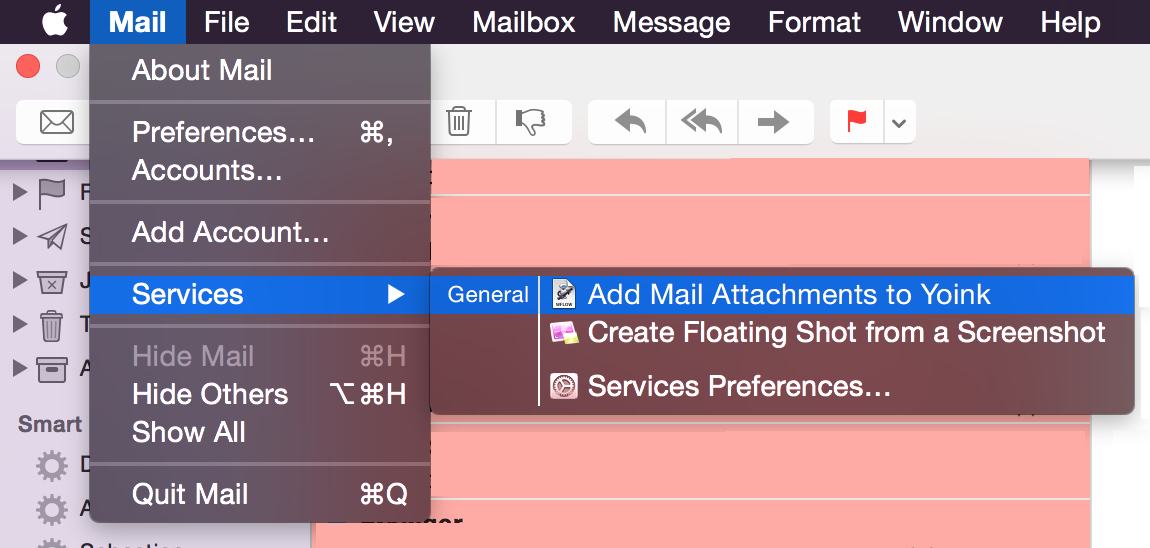
Now you can access the service either through this keyboard shortcut or the Services menu in Mail.app’s Mail menu:
Service Installed in Mail

Automator Workflow Download

For your convenience, here’s the workflow ready for download.
Unzip, double-click to install. Set up the optional keyboard shortcut – done 🙂
If you have any feedback, questions or improvements, please be sure to get in touch – by mail or twitter – I’m looking forward to hearing from you!
Read more

Glimpses App Icon

Glimpses 2.0 for Mac

After a lot of hard work, I’m very happy to finally be able to announce the immediate availability of Glimpses 2.0 (formerly known as Briefly) on the Mac App Store.
The app has undergone some major changes, and I wanted that to be reflected in the app- name and icon (wonderful work by the very talented Alexander Käßner).

What Does Glimpses Do?

Still Motion videos typically show photos for not much longer than the fraction of a second.
Glimpses is designed to let you create these videos with just a few clicks, with stunning results.

The app produces high-quality video with a resolution of up to 4K and lets you add a soundtrack to make your video really sing.
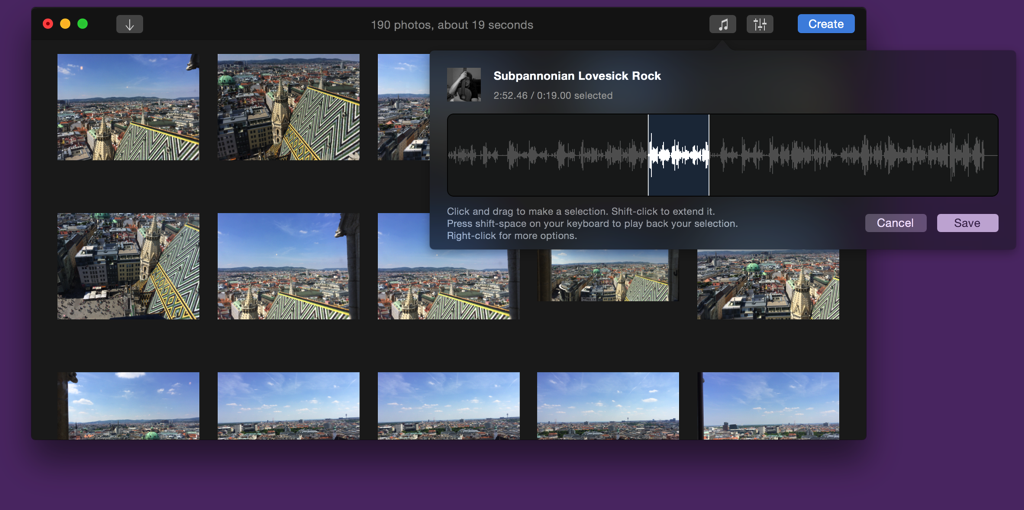
Glimpses with soundtrack selection

What’s New?

– Soundtracks: Glimpses 2.0 makes it much easier to add multiple soundtracks. It also lets you select the parts of the soundtracks you really like to make your Still Motion video really shine.
– Face Detection: Glimpses analyses your photos for faces and places the photos in your video accordingly for much nicer and more personal results.
– 4K Resolution: Going beyond 1080p, Glimpses now renders your videos with a resolution of up to 4K.
– Projects: You can now save your projects. Up until now, the app only remembered the last used photos and soundtrack.

… as well as many more, minor improvements (like improved support for panorama photos) and fixes.

Details

Soundtracks

Soundtracks are a vital part of a Still Motion video. Glimpses makes it so much easier to add and edit one or several soundtracks.
With its new selection feature, you can select just the part of a song you like best that should be used for your video.

If a soundtrack is too short, you can either loop it or add another one. The order of appearance can be changed at any time.
Should a soundtrack be longer than your video, Glimpses will automatically fade it out at the end without you having to do anything.

Face Detection

In earlier versions, Glimpses used to center your photos within the video’s frame.
Glimpses 2.0 is much smarter and analyses your photos for faces and if detected, moves them into the video’s frame, resulting in much nicer and more personal videos.
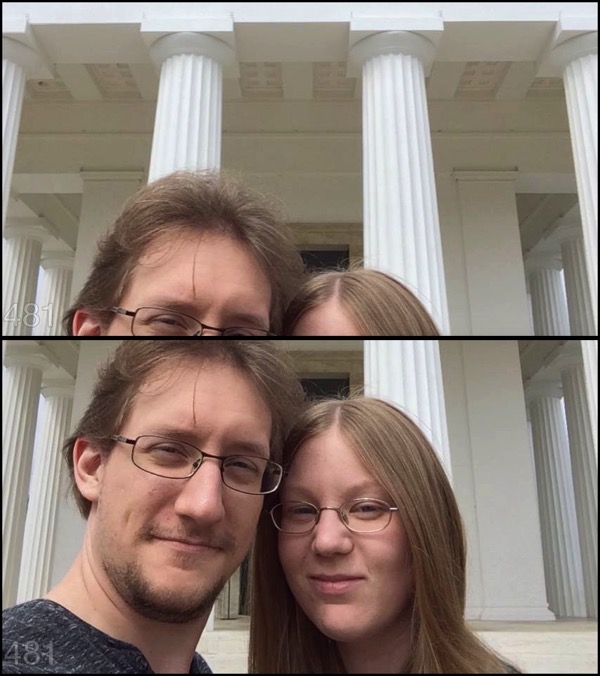
Briefly without and with face detectionA still from a video created with Briefly 1.5.2 (top) compared to the same video created with Glimpses 2.0 (below)

Resolutions and Video Settings

With cameras getting better and better, it was only logical to include new resolutions in Glimpses 2.0 – the app now goes beyond 1080p and adds support for 2K and 4K resolutions. You can set the resolution manually or let Glimpses decide, based on the smallest photo.
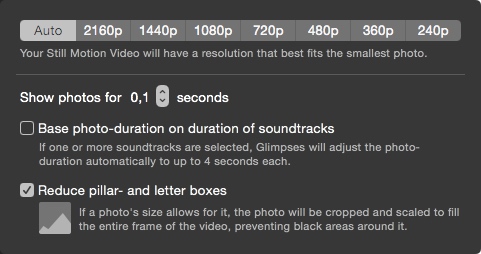
Glimpses Video SettingsGlimpses Video Settings

A photo’s duration can be set from 0.1 seconds up to 4 seconds in 0.1-second-increments, an improvement that allows for more fine-grained control over the resulting video. Glimpses can also automatically do it for you, based on the duration of the soundtracks you selected.

Pricing and Availability

Glimpses is available exclusively on the Mac App Store (click) for the introductory price of $9.99 for a limited time (about 60% off), after which the price will revert to $24.99.
A free, 15-day trial can be downloaded from the website (click) (direct download). If you’re from the media and would like to get more info about the app, please download the press kit (click), thank you.

Glimpses Website: http://eternalstorms.at/glimpses
Glimpses on the Mac App Store: https://itunes.apple.com/app/glimpses/id637565340?mt=12
Glimpses Demo Download: http://eternalstorms.at/glimpses/Glimpses.zip
Glimpses on Twitter:https://twitter.com/GlimpsesApp
Glimpses Press Kit: http://eternalstorms.at/press/Glimpses-2-Press-Kit.zip
Glimpses on Product Hunt: https://www.producthunt.com/posts/glimpses

Thank you for your time, I hope you enjoy this great new version of Glimpses 🙂

If you have any feedback or questions, please be sure to let me know via twitter (click) or eMail (click). I’m looking forward to hearing from you.

Read more

Transloader 2.1 Icon

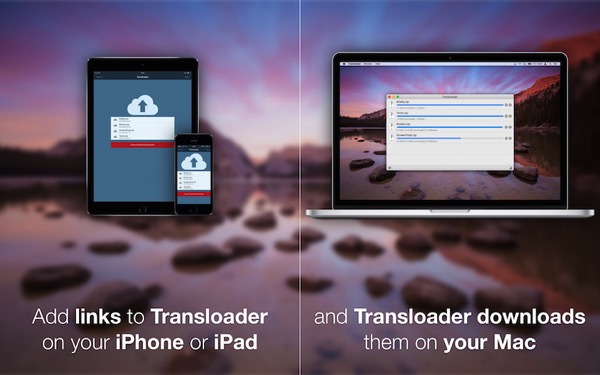
I’m happy to announce today the immediate availability of Transloader 2.1, a significant and important update to the app that lets you start downloads on your Mac remotely from your iPhone or iPad.

Transloader Explanation

I’ve also prepared an App Preview Video for the occasion:

[youtube https://www.youtube.com/watch?v=3VAKEpWVArc]

Easier and more straight forward to use

Transloader 2.1 features an Action Extension so you can add links directly from a website you’re browsing – here a short video of the Action Extension in, well, action 😉

[youtube https://www.youtube.com/watch?v=DPuCp9HO5So]

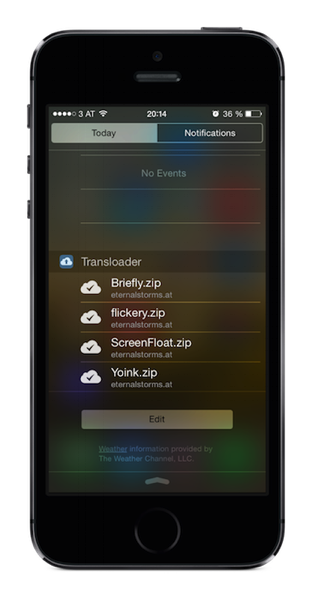
The update also comes with a Today Widget, which offers you a quick look at the state of your downloads right from within Notification Center.

Transloader's Notification Center Today Widget

Improved Feedback

Transloader 2.1 on the Mac will send your iOS devices push notifications when downloads finish or fail so you are always in the know about the state of your downloads.
The Mac app also got a UI overhaul and now fits in perfectly with OS X Yosemite.

On Sale – 65% off!

As part of Two Dollar Tuesday, Transloader is on sale today (March 10zh, 2015) for just $1.99 instead of $5.99 – over 65% off. Head on over and check out the other cool apps as well 😉

System Requirements

For full functionality, iOS 8 or newer and OS X Yosemite or newer are required. An iCloud account is necessary for Transloader to work.

Links

Transloader on the Mac App Store ($1.99; 65% off)
Transloader on the iOS App Store (free)

Transloader Website
Transloader Press Kit (direct download)

I hope you enjoy the update – if you have any feedback or questions, please be sure to get in touch via mail or twitter! I’m looking forward to hearing from you.
—-
My name is Matt, I’m the developer of Eternal Storms Software. If you’d like to comment, you can catch me on twitter here: [twitter-follow screen_name=’eternalstorms’ show_count=’yes’] or by eMail.

Read more