Finder

DeskMat for Mac v1.3.2 – your Desktop-covering companion for more privacy during screen sharing, cleaner streams, and distraction-free work – now has a new widget in addition to the Control Center widget to toggle your Desktop cover.

“Exactly what I needed”

Captain Muso @ Mac App Store

What is DeskMat?

DeskMat helps you:

  • retain your privacy when sharing your screen
  • have cleaner streams
  • work distraction-free

by providing a simple cover for your Desktop.
With the click of a button, all your files and folders (or selected ones) on your Desktop disappear, and re-appear just as easily when you need them.
Tie the app to your Focus modes or specific apps coming to the foreground, so the cover activates and deactivates automatically.
Create workflows with Shortcuts and AppleScript.
With widgets in your Control Center, your Desktop and Notification Center, you can toggle the cover from anywhere.

Tip: Check out the Get to Know DeskMat Blog Post for a deep-dive into its functionality.


What’s New in DeskMat v1.3.2

  • A “normal” widget for your Desktop or Notification Center to toggle DeskMat (in addition to the Control Center widget)
  • Bug fixes

👉 For the full release notes, please click here 👈


Featured on the Mac App Store

DeskMat has repeatedly been featured on the Mac App Store:
💶 “Indispensable affordable apps(alongside Yoink)
📽️ “Elevate your presentations and screencasts
📸 “Snap screenshots like a pro(alongside ScreenFloat)

“Focus mode integration is excellent”

tedsvo @ Mac App Store

Links and Availability

DeskMat is a one-time lifetime purchase on the Mac App Store or my website for currently USD 3.99 / EUR 3,99 / GBP 3.99.
There is no difference in functionality between the different versions.
As with all previous updates, v1.3.2 is completely free for existing customers.
A free, 28-day trial is available for download.
DeskMat requires macOS 13.0 Ventura or newer.
The app is currently localized in English, German, Chinese (Simplified), Dutch, French, Italian, Japanese and Spanish.

🔗 DeskMat Website + Free Trial + Direct Purchase
🖥️ DeskMat on the Mac App Store
🤩 Eternal Storms Software Productivity Bundle on the Mac App Store (includes ScreenFloat, Yoink for Mac, Transloader and DeskMat at ~20% off)

📖 Get to Know DeskMat Blog Post

💌 Contact & Connect

A note on in-app purchases in the Mac App Store version: These are completely voluntary tips you can give me to support me and the development of my apps beyond the one-time purchase price. No additional functionality can be unlocked by giving tips. Your one-time purchase gives you to the complete functionality of DeskMat.

I hope you enjoy DeskMat (and my other apps) : )

Read more

DeskMat for Mac v1.3.1 – a utility that quickly covers your Desktop or individual files for more privacy during screen sharing, cleaner streams, and distraction-free work – fixes a bunch of bugs and makes sure it runs well on macOS 27 “Golden Gate”.

“Exactly what I needed”

Captain Muso @ Mac App Store

What is DeskMat?

DeskMat helps you:

  • retain your privacy when sharing your screen
  • have cleaner streams
  • work distraction-free

by providing a simple cover for your Desktop.
With the click of a button, all your files and folders on your Desktop disappear, and re-appear just as easily when you need them. Alternatively, select specific files or folders, or file types, that you want to hide or keep showing.
Tie the app to your Focus modes or specific apps coming to the foreground, so the cover activates and deactivates automatically.
Create workflows with Shortcuts and AppleScript.
With Control Center widgets, you can toggle the cover from anywhere.

Tip: Check out the Get to Know DeskMat Blog Post for a deep-dive into its functionality.


What’s New in DeskMat v1.3.1

  • Makes sure it runs well on macOS 27 “Golden Gate”
  • Fixes a bug where the static or live wallpaper option didn’t work on some locales
  • Fixes a bug where sometimes the macOS Default Wallpaper failed to load

👉 For the full release notes, please click here 👈

“Focus mode integration is excellent”

tedsvo @ Mac App Store

Links and Availability

DeskMat is a one-time lifetime purchase on the Mac App Store or my website for currently USD 3.99 / EUR 3,99 / GBP 3.99.
There is no difference in functionality between the different versions.
As with all previous updates, v1.3.1 is completely free for existing customers.
A free, 28-day trial is available for download.
DeskMat requires macOS 13.0 Ventura or newer.
The app is currently localized in English, German, Chinese (Simplified), Dutch, French, Italian, Japanese and Spanish.

🔗 DeskMat Website + Free Trial + Direct Purchase
🖥️ DeskMat on the Mac App Store
🤩 Eternal Storms Software Productivity Bundle on the Mac App Store (includes ScreenFloat, Yoink for Mac, Transloader and DeskMat at ~20% off)

📖 Get to Know DeskMat Blog Post

💌 Contact & Connect

A note on in-app purchases in the Mac App Store and direct purchase versions: These are completely voluntary tips you can give me to support me and the development of my apps beyond the one-time purchase price. No additional functionality can be unlocked by giving tips. Your one-time purchase gives you to the complete functionality of DeskMat.

I hope you enjoy DeskMat (and my other apps) : )

Read more

DeskMat for Mac v1.3 – a utility that quickly covers your Desktop for more privacy during screen sharing, cleaner streams, and distraction-free work – now has the ability to not only cover your entire Desktop, but also just individual files and folders. It is now also fully scriptable with AppleScript.

“Exactly what I needed”

Captain Muso @ Mac App Store

What is DeskMat?

DeskMat helps you:

  • retain your privacy when sharing your screen
  • have cleaner streams
  • work distraction-free

by providing a simple cover for your Desktop.
With the click of a button, all your files and folders on your Desktop disappear, and re-appear just as easily when you need them.
Tie the app to your Focus modes or specific apps coming to the foreground, so the cover activates and deactivates automatically.
Create workflows with Shortcuts and AppleScript.
With Control Center widgets, you can toggle the cover from anywhere.

Tip: Check out the Get to Know DeskMat Blog Post for a deep-dive into its functionality.


What’s New in DeskMat v1.3

  • In addition to the full Desktop cover, you can now choose to only hide (or show) individual files or folders on your Desktop
  • Automate DeskMat with AppleScript
  • Access your Desktop from DeskMat’s button’s contextual men (which will not show up in streams, either)

👉 For the full release notes, please click here 👈

“Focus mode integration is excellent”

tedsvo @ Mac App Store

Links and Availability

DeskMat is a one-time lifetime purchase on the Mac App Store or my website for currently USD 3.99 / EUR 3,99 / GBP 3.99.
There is no difference in functionality between the different versions.
As with all previous updates, v1.3 is completely free for existing customers.
A free, 28-day trial is available for download.
DeskMat requires macOS 13.0 Ventura or newer.
The app is currently localized in English, German, Chinese (Simplified), Dutch, French, Italian, Japanese and Spanish.

🔗 DeskMat Website + Free Trial + Direct Purchase
🖥️ DeskMat on the Mac App Store
🤩 Eternal Storms Software Productivity Bundle on the Mac App Store (includes ScreenFloat, Yoink for Mac, Transloader and DeskMat at ~20% off)

📖 Get to Know DeskMat Blog Post

💌 Contact & Connect

A note on in-app purchases in the Mac App Store version: These are completely voluntary tips you can give me to support me and the development of my apps beyond the one-time purchase price. No additional functionality can be unlocked by giving tips. Your one-time purchase gives you to the complete functionality of DeskMat.

I hope you enjoy DeskMat (and my other apps) : )

Read more

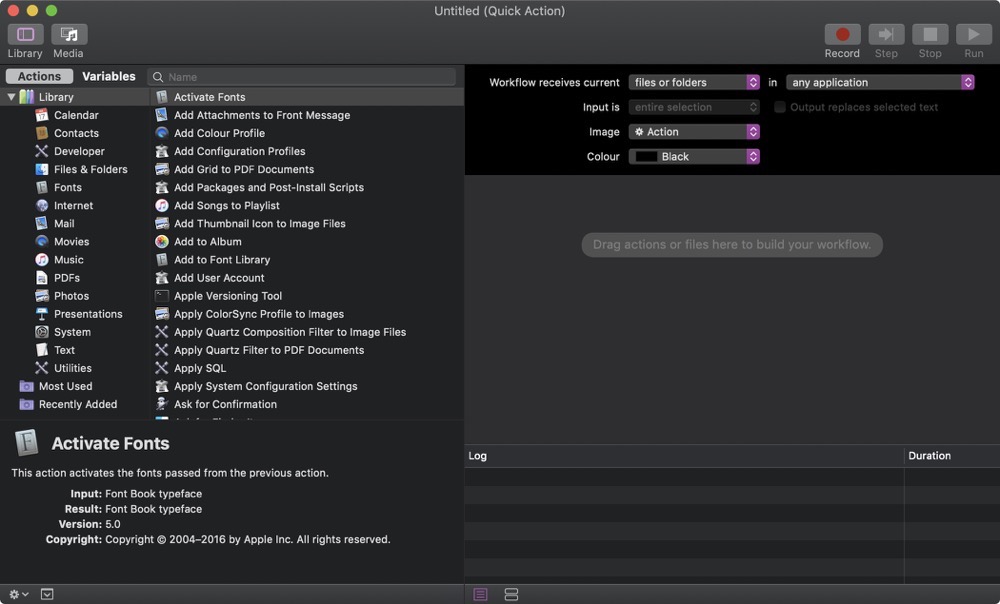
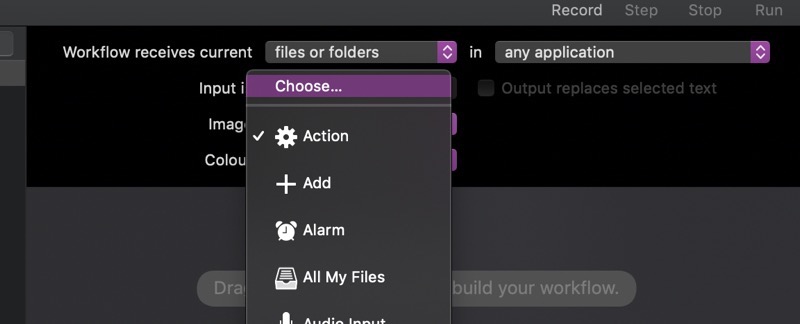
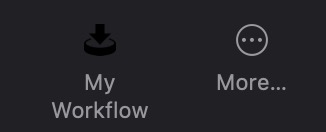
When creating a custom Quick Action for macOS Mojave’s Finder, you have the option to supply a custom icon:

Creating a custom Quick Action in Automator for macOS Mojave

Selecting an icon in Automator

But this is what happens when you supply an ordinary image in Dark Mode:

A Quick Action's icon without adjustments

or Light Mode:

Unmodified Quick Action icon

(in Light Mode, it’s obviously better, but still not as subdued as it should be, which is more grey than pitch-black, or whatever color your original icon file might have).

Tip #1 – Getting the icon’s color right

The trick is to have the file end in ‘Template’, like ‘MyWorkflowIconTemplate.tiff’. But that’s not all there is to it. When you add a custom icon through Automator, it automatically gets renamed into ‘workflowCustomImage.png’. So no matter what you name your file, it won’t matter.

To fix this, add a custom icon to your Quick Action in Automator, save, switch to Finder and navigate to /Users/yourname/Library/Services/, where your newly saved Quick Action will end up.
There, right-click your Quick Action, select ‘Show Package Contents’, and navigate into Resources, where your icon file will be. Rename it to ‘workflowCustomImageTemplate.png’.
Now, navigate into Contents and open Info.plist. Look for <key>NSIconName</key> and change ‘workflowCustomImage’ to ‘workflowCustomImageTemplate’. Save.

Now the icon will look like this:

Modified Quick Action icon in Dark Mode

Modified Quick Action icon in Light Mode

That’s much better. But there’s another issue we need to take care of:

Touch Bar with oversized Quick Action icon

The icon’s a bit too large, even though in Finder and the “More…” menu, it looks well-sized.

Tip #2 – Getting the Touch Bar icon to play nice

I thought I’d be smart about it, since the “append ‘Template’ “ trick worked, I’d have three differently sized images and append @2x and @3x. But it didn’t work.
The trick is to have a TIFF file with 2 (or 3, to be on the safe side) representations – one at 1x, one at 2x and one at 3x.
And voila, it worked:

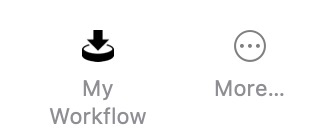
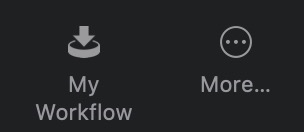
Quick Action icon in Touch Bar with properly sized icon

To create the TIFF, I wrote a small app that takes my icon file, creates three NSBitmapImageRep objects from it and adds them to an NSImage instance. Then it writes the NSImage object’s TIFFRepresentation to disk.
Open that file in Preview.app and you’ll notice all three icons inside that one TIFF (you might have to select View – Thumbnails in the menu to show them)
Select the first and select Tools -> Adjust Size… in the menu bar.
Resize the image to 16×16 (which I found to be working nicely) and set its resolution to 72, if it isn’t already.
Select the next thumbnail and resize it to 32×32 at 144 DPI, and the third thumbnail to 48×48 at 216 DPI. Save.
Now repeat Tip #1 with this new file and you’re all set.

I hope this will save you some time, as it cost me plenty 😉

_____
Matthias Gansrigler
 | Founder & Developer – Eternal Storms Software
e: blog@eternalstorms.at
twitter | facebook | instagram

Read more