Developer Tip

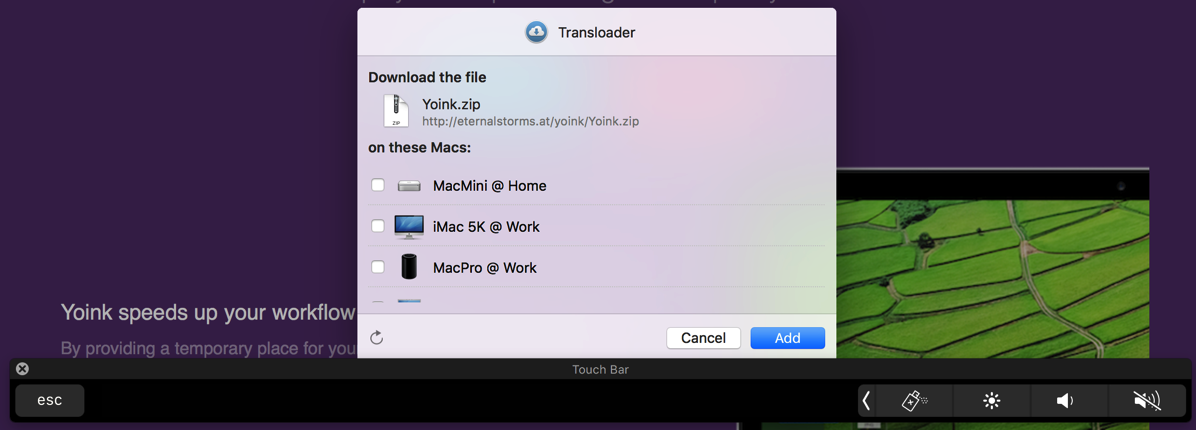
You’re working on your Share extension with support for MacBook Pro’s Touch Bar, but it’s empty and doesn’t appear when your extension is loaded?

NSTouchBar Empty

The solution is simple:

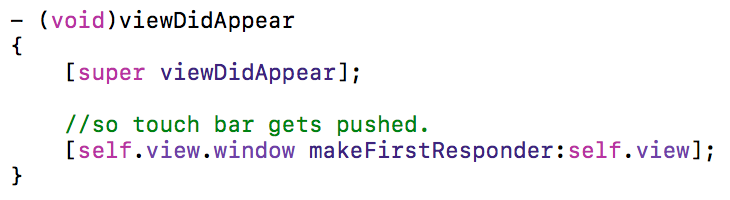
Solution for showing NSTouchBar from within a Share extension

Call [self.view.window makeFirstResponder:self.view]; and it will push your glorious NSTouchBar onto the stack:

NSTouchBar working in a Share extension

Hope it helps – it would have saved me 20 minutes if I’d known 😉

Eternal Storms Software Logo

– – – Do you enjoy my blog and/or my software? – – –
Stay up-to-date on all things Eternal Storms Software and join my low-frequency newsletter (one mail a month at most).
Thank you 🙂

Read more

An app icon badged with 'Badge'

A recent conversation I had with Jeff Johnson (of ClickToFlash fame, @lapcatsoftware on twitter) prompted me to look into how badging an app’s icon in macOS’ Dock works.

There were a couple of questions that needed answering:

  • Does badging happen automatically when sending an NSUserNotification?
  • If not, how do I apply a badge to my app’s icon in the first place?
  • How do I retrieve and respect the user’s Notification settings for the app in System Preferences?

Automatic Badging by Sending a NSUserNotification?

NSUserNotification Notification

Nope, automatic badging doesn’t happen. Even though System Preferences -> Notifications suggests that badges and notifications belong together, in code, they’re separated.
That means you have to add the badge to your app’s icon yourself. Also, you need to keep track of whatever number you want to display with the badge and update or clear it at appropriate times.

For example, Mail.app uses the badge to display the amount of unread eMails you have. The badge doesn’t clear when you activate Mail and only decreases when you mark mails as read.
Transmission, on the other hand, informs you about how many downloads have finished since you last had the app active. Once you activate the app again, the badge gets cleared and re-starts from zero.

How to Badge the App’s Icon?

Badging is straightforward:

NSApp.dockTile.badgeLabel = @"Badge";

Please note that putting text into the badge is not a good idea – I did it here just for fun, but text in the badge is very limited and if you have a longer string, what you’ll end up with is something like “A….z”.
It’s best to stick with numbers.

Respecting System Preferences’ Notifications Settings?

If you only use badges (without notifications), you’ll notice your app is missing from System Preferences’ Notifications preference pane.
That can pose a problem, because now you either have to create your own user-setting for badges or the user will have no way of turning them off.
The trick, then, lies with NSUserNotification. Not in the API itself, but in two crucial steps:

  1. Code sign your app.
  2. Add this key-value pair to your Info.plist: NSUserNotificationAlertStyle with a string value of either banner (recommended by Apple) or alert.
    Supposedly, there’s another value, none, but that hasn’t worked for me yet – the app won’t appear in the Notifications preference pane.

Having the key-value pair in your Info.plist has no downside if you don’t use NSUserNotifications. There’s only the upside of having the user be able to disable your app’s badges if they like.

Now that the user can change the setting for your app’s badges, how do you read it out to see if you should badge or not? It’s easier than you think: you don’t.
Just like the system doesn’t show your NSUserNotifications if the user has disabled them for your app, the Dock simply doesn’t display your badge if the user has disabled it in System Preferences.

All you have to do is keep track of the number that should be displayed in the badge, and that you update or clear it at appropriate times.
For example, you might not want to have the badge visible when the user quits your app, so you could set -badgeLabel to nil in -applicationWillTerminate:.

By the way, if you ever need to reset System Preferences – Notifications for your app (or all apps), there’s a nice how-to on stackoverflow.

Happy badging 🙂

Update: Jeff Johnson follows up with some more tips and tricks about NSUserNotification in this blog post.

Eternal Storms Software Logo

– – – Do you enjoy my blog and/or my software? – – –
Stay up-to-date on all things Eternal Storms Software and join my low-frequency newsletter (one mail a month at most).
Thank you 🙂

Read more

In iOS Simulator, you can, via a menu item, quickly simulate memory pressure for the simulated device to see if your app behaves correctly under low memory conditions (releasing caches, cleaning up resources, and so on).

Recently, I had the need for it on the Mac (where such a menu item is not available), while working on an XPC service for Yoink, to see if it terminated properly under certain conditions.

Meet the memory_pressure tool

OS X comes with the Terminal, and with the Terminal come some awesome tools. Among them is memory_pressure. Its man page says it all:

Apply real or simulate memory pressure on the system.

Usage of memory_tool

sudo memory_pressure -S -l critical

What this does is simulate (-S) a memory pressure of a critical level (-l critical).
sudo is needed, otherwise it will probably fail with an “Operation not permitted” error.

memory_tool’s options

-l:   Two levels of pressure are supported: ‘warn’ and ‘critical’.
-p:  For real pressure, this lets you define how much memory should remain free, in percent of total memory.
-S:  Simulate memory pressure, don’t really allocate memory.
-s:   If applying real pressure, this is the duration to wait before allocating or freeing memory.
       If it’s simulated pressure, the system will be maintained at an artificial memory level for this duration.

Read more

In the latest Xcode beta (currently, 7.1 beta 2), I noticed this in its Release Notes (login required) :

(…)Developers running on Yosemite will not be able to pair the Apple TV Remote with the tvOS Simulator Runtime. (…)

That implies that it’s somehow possible to pair the Apple TV Remote with a Mac running OS X 10.11 El Capitan – but how? There’s no explanation anywhere to be found.

Un-pair the Apple TV Remote

If you’ve already paired your Apple TV Remote with your Apple TV Developer Kit, you won’t be able to pair it with your Mac – you’ll have to un-pair it first.

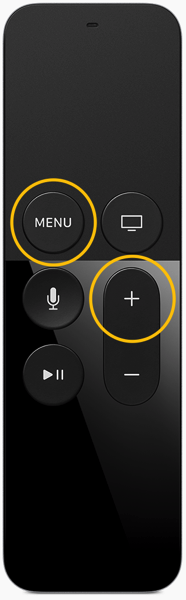
Remote and interaction remote 2xOriginal Image Credit: Apple Inc., markup mine.

A response to this forum threadon the Apple Developer Forums lead me to how to do it: Hold down the Menu and Volume-Up keys on your Apple TV Remote for about 5 seconds, perhaps a little longer, and the Remote’s pairing will be reset.

Pair it with your Mac

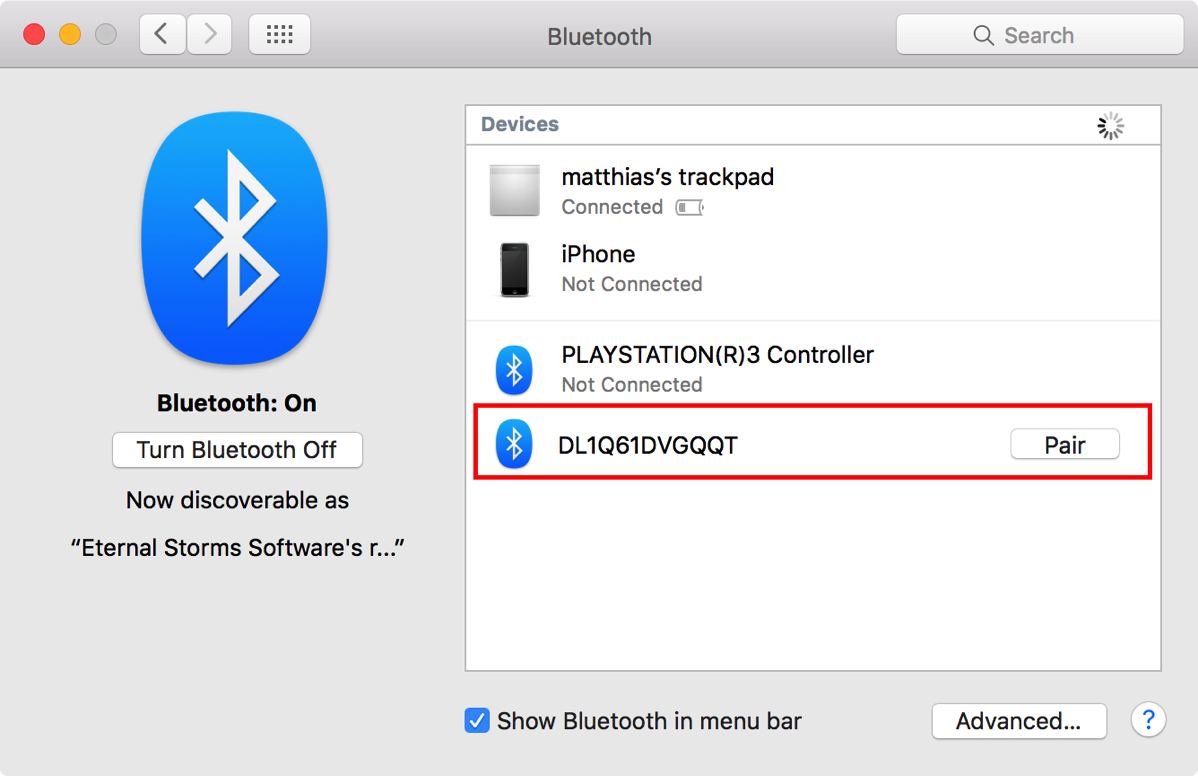
Launch System Preferences and click on Bluetooth. In there, you’ll see something like this:

Screenshot of System Preferences 05 10 2015 17 37 23The Apple TV Remote in System Preferences / Bluetooth.

Click on Pair to pair the Apple TV Remote with your Mac. There should be a spinning wheel for a couple of seconds after which it should be paired.

Ready to Rock

Now the Xcode tvOS Simulator automatically recognizes the paired Apple TV Remote and should respond to anything you do on it. Enjoy 🙂

Update (October 6th, 2015) – Media Control?

Oliver Drobnik (@Cocoanetics on twitter) was interested in what kind of Bluetooth profiles the Apple Developer Kit Remote supports – for example, the Media Control profile to be able to adjust volume, play/pause, etc) – or if it can only be used in Xcode’s Simulator.
He suggested I use the free Bluetooth Scanner App LightBlue to see what profiles it supports.
According to the app and this Apple website that lists the service names, the profiles supported are Battery Service, Bond Management, Device Info and a custom Apple service – so no media control for now.
But thanks to Oliver, now we know.

Read more