Today’s my 39th birthday. Yes, I’m that old. It’s the last time my age will have a leading 3. Unless I live to be 300. But I’ll cross that bridge once I get there.
Because I don’t have a fancier way of doing it, I’ll just list the promo codes to be used on the App Store here. Please be so kind as to add a comment with the one you used so I can update this post and cross them off – thank you!
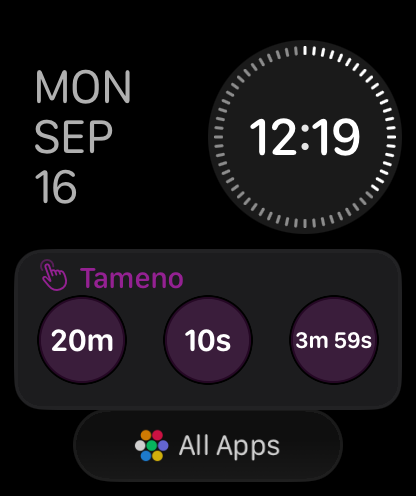
I’ve got a couple of updates for you today: Yoink for iOS has been updated with new widgets and Control Center access, Tameno gets new Control Center and watchOS widgets, and Yoink for Mac gets a brand new Clipboard History widget.
Yoink for iPad and iPhone
Yoink for iOS – your files and snippets shelf for anything you can drag, copy, share and download – gets a couple of cool new widgets for your home screen and, on iOS 18, your Control Center, while fixing a couple of issues along the way.
What’s New in Yoink for iPad and iPhone v2.5?
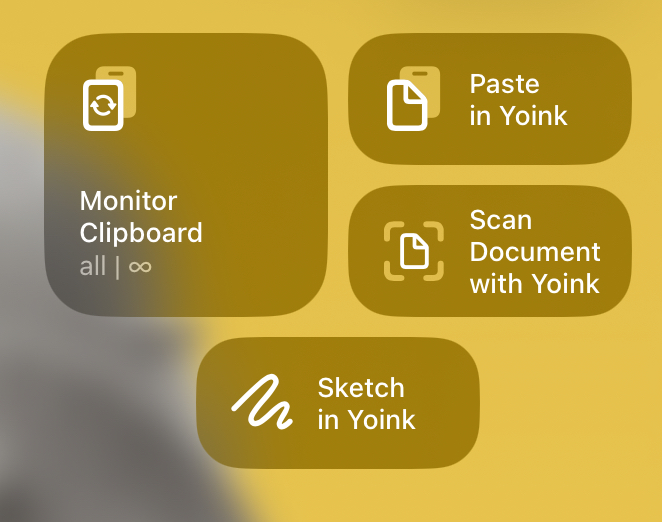
+ iOS 18 Control Center Widgets
These allow you to: – start monitoring your clipboard with Yoink in the background (configurable with a time-out, and a filter (save everything / only images / only texts / only links) – Paste your clipboard into Yoink manually – Scan a document with Yoink – Sketch in Yoink
+ New File List Widget for your Home Screen
Get quick access to everything you stored in Yoink. It’s configurable, so you can let it only show images, or links, for example. Additionally, you can set it up to open files in Picture-in-Picture, so you can open a PDF, an eMail, or even a website and have it ready in any app you are in the PiP overlay.
+ Bug fixes and improvements
I’ve also fixed a couple of issues with Yoink’s keyboard – which allows you to access files stored in Yoink whenever you’re editing text, the clipboard monitor, and the main list display of items.
Availability and Links
Yoink for iPad and iPhone is exclusively available on the App Store in English, German, Chinese (Simplified), Japanese and Korean. It’s a one-time purchase at USD 5.99 / EUR 6,99 / GBP 5.99 .
Tameno – your auto-repeating tapping timer – now can be started from iOS 18’s Control Center, and has a new interactive widget for your watchOS 11-equipped Apple Watch.
What’s New in Tameno v1.2?
+ iOS 18 Control Center Widgets
Get quick access to your last used and your favorite interval, right from your Control Center.
+ Interactive Widgets for watchOS 11
Set an interval right from your Smart Stack and off you go!
There’s also a new “Recent Intervals” widget, giving you access to the last three intervals you used.
Availability and Links
Tameno is available in English and German for Apple Watch, iPhone, iPad, Mac and Apple TV as a universal app on the iOS and Mac App Store. A one-time purchase of USD 3.99 / EUR 3.99 / GBP 3.99 gives you access to all of them.
Yoink for Mac – the app that drastically improves drag and drop on your Mac – has a new Clipboard History widget, making it easier and quicker than ever to re-copy something, place something in Yoink, pin it, or remove it.
What’s New in Yoink v3.6.93?
+ A New and Improved Clipboard History Widget
Click on the image or the file title to copy the item, press the pin to pin, the Yoink icon to send the file to Yoink, or the x to delete it.
Availability and Links
Yoink for Mac is available in English, German, Japanese, Korean, French, Italian, Portuguese and Chinese (Simplified) as a one-time-purchase on the Mac App Store (USD 8.99 / EUR 9.99 / GBP 8.99), or part of a Setapp subscription.
With Tameno, you set auto-repeating, “tapping” timers – the perfect companion for repetitive tasks. It’s available for your Apple Watch, iPhone, iPad, Mac and Apple TV as a universal binary – always ready, wherever you might need it.
Set up an interval between 2 seconds and 20 minutes, and Tameno lets you know each time it elapses (by tapping you, by sound, or by screen flashing), and then re-sets itself to alert you again.
Starting your first interval is as easy as launching the app and selecting Start Tapping.
Note: You can also use the play/pause button on your Apple TV’s remote to start and stop Tameno.
Changing the Interval
Use the + and – buttons at the sides to increase and decrease your interval. Use single clicks on your remote to change it by seconds, click-and-hold to change it by minutes.
Accessing Recently Used Intervals
At the top left, select the back-in-time button to access your recently used intervals.
Settings
At the top right, select the gear button to access Tameno’s settings.
Count to Zero
When enabled, instead of counting a 5 second interval down 5, 4, 3, 2, 1, 5, 4, 3, 2, 1 (etc), Tameno counts it down as 4, 3, 2, 1, 0, 4, 3, 2, 1, 0 (etc).
(Recycling the video for Apple Watch here, but it’s just the same in the Apple TV app)
Audio Feedback
If selected, Tameno plays a “Tick” sound every time your interval elapses.
Visual Feedback
Flashes your screen in the color of your choice with every elapsing interval. For a video of this, please see “Starting Your First Interval“.
That’s a Wrap
That’s all there is to Tameno. It’s a simple app that lets you use auto-repeating timers so you don’t have to count down in your head anymore, freeing your mind for more important things. I hope you like it!
Links and Availability
Tameno is a universal one-time purchase on the App Stores, so a single purchase allows you to use the app on your Apple Watches, iPhones, iPads, Macs, and Apple TVs. It costs USD 3.99 / EUR 3,99 / GBP 3.99 and is available in English and German. It requires watchOS 9.4, iOS 16.6, iPadOS 16.6, macOS 13.5, and tvOS 16.6. Complications and Widgets on Apple Watch require watchOS 10. The interactive widget requires macOS 14 and iOS 17.
With Tameno, you set auto-repeating, “tapping” timers – the perfect companion for repetitive tasks. It’s available for your Apple Watch, iPhone, iPad, Mac and Apple TV as a universal binary – always ready, wherever you might need it.
Set up an interval between 2 seconds and 20 minutes, and Tameno lets you know each time it elapses (by tapping you, by sound, or by screen flashing), and then re-sets itself to alert you again.
Launch Tameno and click on Start Tapping to have Tameno count down repeatedly from the set interval.
Note: Alternatively, you can press the space bar on your keyboard to start and stop intervals.
Changing the Interval
You can easily change the interval with the + and – buttons, by dragging or scrolling, or with your keyboard.
+ and – Buttons
To adjust the interval by seconds, press the + and – buttons on either side.
Drag or Scroll Up and Down, or Left and Right
Just like on Apple Watch, iPhone and iPad, you can click-and-drag to adjust the interval by seconds, or double-click-and-drag to adjust by minutes.
You can also scroll up and down to adjust by seconds, or scroll left and right to adjust by minutes.
Keyboard
Change your interval from your keyboard, using the +, – or arrow keys. With the + and – and up and down arrow keys, you can adjust the interval by seconds. With the left and right arrow keys, you can adjust the interval by minutes.
Accessing Recently Used Intervals
Right-click anywhere to bring up your recently used intervals.
Your recently used intervals are synced across all your devices over iCloud.
Dock Menu
Right-click Tameno in your Dock and you’ll be able to access the recently used intervals from there as well. You can also start and stop counting down from here.
Settings
Access Tameno’s settings by selecting Tameno > Settings… in your menu bar, or by pressing command and comma (⌘ ,).
Count to zero
When enabled, instead of counting a 5 second interval down 5, 4, 3, 2, 1, 5, 4, 3, 2, 1 (etc), Tameno counts it down as 4, 3, 2, 1, 0, 4, 3, 2, 1, 0 (etc).
Badge icon in Dock
To be able to see quickly where in your interval you are right now, you can badge Tameno’s icon in your Dock with it.
Show in menu bar
In that vein, if you want even more readily available visual feedback on where in your interval you are at any given time, you can place it in your menu bar.
Audio Feedback
If selected, Tameno plays a “Tick” sound every time your interval elapses. For a video of this, please see “Starting Your First Interval“.
Visual Feedback
Flashes your screen in the color of your choice with every elapsing interval. For a video of this, please see “Starting Your First Interval“.
Widgets
Widgets give you quick access to Tameno and your favorite and recently used intervals.
Custom Interval Widget
This widget allows you to set an interval on-the-fly and start it right away.
Favorite Interval
Use this widget to have your all-time-favorite interval always at the ready!
Recently Used Intervals
This widget holds most of your recently used intervals, ready to get tappin’.
Siri Shortcuts
Tameno offers you two actions for Siri Shortcuts: Start tapping, and Stop tapping. Neat, isn’t it?
Start Tapping
Allows you to create a shortcut that makes Tameno tap you in the interval of your choice.
Stop Tapping
Consequently, with Stop tapping, you can create a shortcut that stops tapping you right away.
Note: Siri Shortcuts you create will, by default, become available on all devices that support them: your Apple Watch, iPhone and iPad, and Mac.
Up Next
Next time in Part V, I’ll show you all about Tameno on your Apple TV. I hope you’ll join me!
Links and Availability
Tameno is a universal one-time purchase on the App Stores, so a single purchase allows you to use the app on your Apple Watches, iPhones, iPads, Macs, and Apple TVs. It costs USD 3.99 / EUR 3,99 / GBP 3.99 and is available in English and German. It requires watchOS 9.4, iOS 16.6, iPadOS 16.6, macOS 13.5, and tvOS 16.6. Complications and Widgets on Apple Watch require watchOS 10. The interactive widget requires macOS 14 and iOS 17.