
Check out ScreenCastsONLINE’s tutorial for my app DeskMat – the easy way to cover your Desktop for more privacy and distraction-free work:
👉 Watch Here 👈
Thank you, Lee, for this comprehensive look at my app.
Check out ScreenCastsONLINE’s tutorial for my app DeskMat – the easy way to cover your Desktop for more privacy and distraction-free work:
👉 Watch Here 👈
Thank you, Lee, for this comprehensive look at my app.

For Transloader’s upcoming version 3.0, I needed an NSMenuItem that not only showed a title, but also a subtitle, along with an optional image.
Because it took a bit of work and “reverse-engineering” (the click-on-an-item-selection-animation’s timing, in particular), I figured someone else might benefit from this.
It’s all pretty straight forward, and best shown / explained as an Xcode project, which you can download on Github.
This is basically all you need to do:

That’s it!
There are some things this implementation can not do, which the default NSMenuItem can:
Basically, keyboard interaction is unavailable.
I do hope it’s useful to you anyways.
If you’re using this, I’d love to hear from you! 😊
For the upcoming action extension in Transloader, I’m using a UIWebView to show the webpage the user is currently browsing, so they can tap on a link they’d like to download:
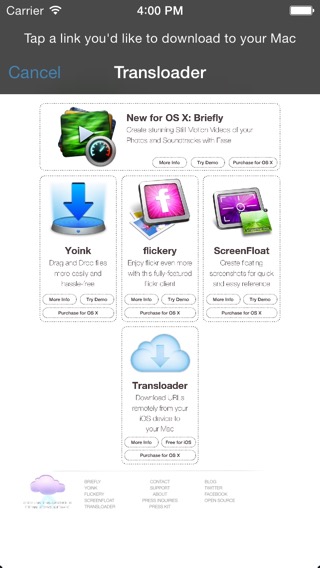 Transloader’s Action Extension, displaying a UIWebView
It’s nice, but I wanted to go an extra step. A user might zoom and scroll in Safari before launching the action extension and when they do, the web page would be shown from the top, not zoomed. Here’s how I changed that.
One of the main purposes of an action extension is to allow a user access to functionality from a different app without a) leaving the current app and b) without leaving the current context (which is more or less the same, but context is the point I’d like to drive home with this post).
In that vain, I thought it would be neat to present the website a user was viewing in Safari the same way in the action extension – meaning the zoom level and scroll position.
I figured, a user browses a site, perhaps zooms in on stuff and when they find a link they’d like to download to their Mac, they press the Share button in Safari and select Transloader’s action extension.
The thing is, the UIWebView of the extension loads the website for itself again and hence starts from the top, not zoomed in. So the user is ripped out of the context, they’d have to scroll and zoom again to get to the same position they had in the Safari web view. I wanted to change that:
A user should see the same part of the website in Transloader’s action extension as the part they were viewing in Safari before tapping the Share button.
Luckily, Apple implemented a way that allows us to do just that.
In an Action extension for webpages (action extensions that are displayed in the action sheet if the NSExtensionActivationSupportsWebPageWithMaxCount criteria is met), you can supply a JavaScript preprocessing file that will let you examine the contents of the webpage before your native code is called.
This way, we can extract the current page scale and the scroll position. Here’s how we do that. In the Action.js, we call our native code with these parameters:
arguments.completionFunction({
“pageXOffset”:window.pageXOffset,
“pageYOffset”:window.pageYOffset,
“pageScale”:(document.body.clientWidth/window.innerWidth),
“baseURI”:document.URL
})
– pageXOffset is the horizontal scroll value
– pageYOffset is the vertical scroll value
– pageScale is how far the user has zoomed into the page
– baseURI is the current URL displayed in Safari
With these parameters, we can do what we set out to do – display the web page in the Action extension the same way as the user left it in Safari.
In our implementation file, in the WebView’s delegate method “-webViewDidFinishLoad:”, all we basically need to do is apply these parameters to our own web view:
[self.webView.scrollView setZoomScale:self._pageScale
animated:YES];[self.webView stringByEvaluatingJavaScriptFromString:[NSString stringWithFormat:@”window.scrollTo(%ld,%ld)”,self._pageXOffset,self._pageYOffset]];
For a complete project of how this exactly works, please scroll down where you’ll find a Xcode Project on Github.
And this is what it looks like in action – notice that after the Action extension is tapped, the website appears the same way as it was in Safari:

TL;DR – I uploaded a demo project here on Github.
I hope you can make good use of this code – and if you do, please be sure to let me know! 🙂
—-
My name is Matt, I’m the developer of Eternal Storms Software. If you’d like to comment, you can catch me on twitter here: [twitter-follow screen_name=’eternalstorms’ show_count=’yes’] or by eMail.