Yoink for Mac

Yoink users have been automating adding various files to Yoink via Automator Workflows for a while now – from adding mail attachments or screenshots, to adding files from the Terminal.
Douglas (@douglasjsellers on twitter) today adds to this list of wonderful workflows an Automator Workflow that lets you quickly add files that you created/saved recently.

Here’s what he says about it:

I cooked up my Automator Service that lets you send the last file that you saved (from any application) to Yoink.
When bound to a key combination this allows you to do things like “Export to Web” from Adobe Photoshop, hit the key combo and then the newly created png is on Yoink.
Or say you’re editing a file in Emacs and you want to add it as an email attachment. You save the file, hit the key combo and the file will then be in Yoink for easy dragging into your email.
I also use it heavily to get recently downloaded files from chrome to Yoink.

The Automator Workflow
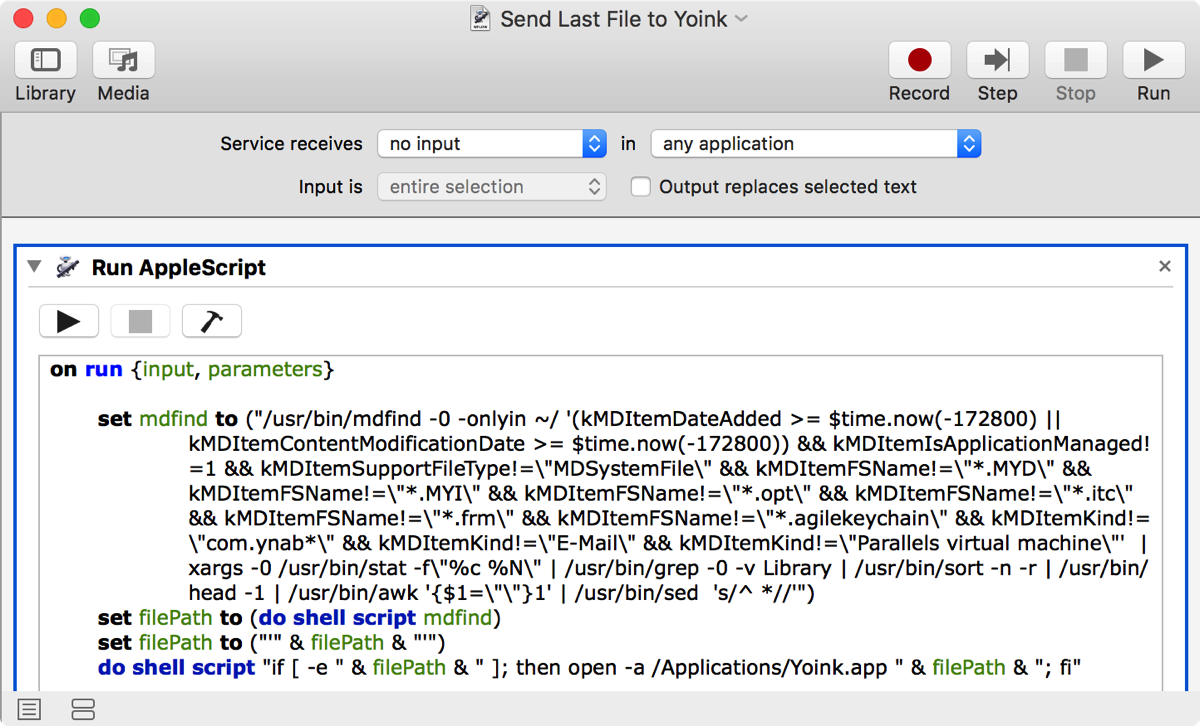
Screenshot of Automator Workflow for Yoink

The main part of this workflow consists of a complex shell script that finds files that were recently saved, excluding files that are less likely to be needed in Yoink – obviously, this is something everybody needs to configure for themselves, but since this is an Automator Workflow, it is easily done.

Download

The Automator Workflow is available for download here (~130 KB).
My thanks to Douglas for his awesome work.

Installation & Keyboard Shortcut Setup

To install this workflow, download it from above, unzip it, double-click it and click on Install when this dialog comes up:
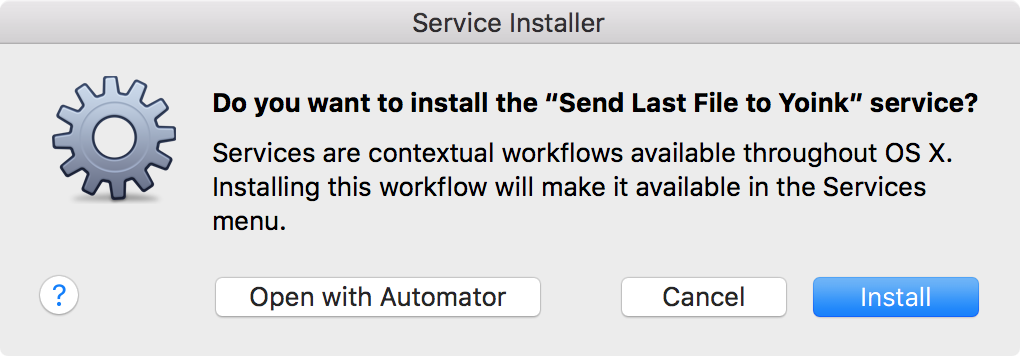
Instaling the Automator WorkflowClick on Install if you’d like to install the service, click on Open with Automator if you’d like to make changes

To create a keyboard shortcut for this service:

  1. Launch System Preferences
  2. Click on Keyboard -> Shortcuts -> Services
  3. Find ’Send Last File to Yoink’ in the list, under ‘General’
  4. Click on ‘add shortcut’ and enter the shortcut you’d like to use to activate the service

If you have any feedback regarding this workflow or if you’d like to share a workflow of your own, please be sure to get in touch either via twitter or eMail. Thank you and enjoy 🙂


Read more

I’m participating in TwoDollarTuesday’s Black Friday sale with some of my apps (MacStories has great coverage of over 200 deals as well) :


Yoink IconYoink
Simplify and improve drag and drop
40% off – Mac App Store; Website

Screenfloat IconScreenFloat
Create floating screenshots to keep references to anything visible on your screen
28% off – Mac App Store; Website

Transloader IconTransloader
start downloads on your Mac remotely from your iPhone or iPad
30% off – Mac App Store; Website

Glimpses IconGlimpses
turn your photos and music into stunning still motion videos
40% off – Mac App Store; Website 


I hope you’ve had a great Thanks Giving and are enjoying the Black Friday Sale that’s going on 🙂

Read more

Yoink for Mac Usage Tip #8

The following explains how to add attachments directly from Mail.app into Yoink.
For more Usage Tips like this, click here.

Today, I received an eMail from Sandro G. asking me if there was a way to quickly add mail attachments from selected mails in Mail.app to Yoink.

The Problem

Sandro frequently adds attachments from mail messages in Mail.app to Yoink but says it can be cumbersome with lots of mails with a couple of attachments each.
I agree, having to select each mail message with an attachment, scrolling down and dragging each attachment to Yoink can take a lot of time.
Instead, he says, he’d like a way to just select the mail messages that contain the attachments, ideally press a keyboard shortcut and let Yoink do the rest, saving nerves and, most importantly of all, time.

The Solution

As with the “capture screenshots to Yoink”-problem, where Bogdan V. wanted to be able to take screenshots that automatically end up in Yoink, Automator seemed like a good solution for this.

I launched Automator and created a System Service – easily accomplished by creating a new project and selecting Service in the resulting dialog.
A system service is something you can either access through a contextual menu or by the applications Application menu -> Services, containing context-aware services, for example “Look up in Dictionary” or “New Email with Selection”.

Automator - New Project DialogAutomator’s New Project Dialog. Select Service and click on Choose.

The Automator Workflow

Automator - Finished workflowThe finished workflow.

Let’s go through it from the top. Specify the service to receive no input (as the other possible values don’t apply) and select Mail as the target application the Service should be available in.
Now we need three actions:

  1. Get Selected Mail Messages – creates a reference to the currently selected mails in Mail.app
  2. Get Attachments from Mail Messages – uses the references created before and saves their attachments to a folder, in this case the Default Mail downloads folder
  3. Open Finder Items – Action 2 passes the attachment files to this action, where we ask Yoink to open those files, resulting in them being added to Yoink’s files

Installation and Keyboard Shortcut

Once you save it, it should be automatically saved into your Services folder. If not, double-click the saved file and it should prompt you with this dialog – click Install and it should be installed correctly:
Automator - Service Installation
If you’d like a keyboard shortcut, it’s quickly done. Launch System Preferences, select Keyboard -> Shortcuts -> Services, scroll to find the service and set up your shortcut:
Service - Keyboard Shortcut
Now you can access the service either through this keyboard shortcut or the Services menu in Mail.app’s Mail menu:
Service Installed in Mail

Automator Workflow Download

For your convenience, here’s the workflow ready for download.
Unzip, double-click to install. Set up the optional keyboard shortcut – done 🙂
If you have any feedback, questions or improvements, please be sure to get in touch – by mail or twitter – I’m looking forward to hearing from you!
Read more