Mac Geek Gab is hosting a giveaway of Yoink for Mac and ScreenFloat for Mac.
You can enter here.
Good luck : )
Mac Geek Gab is hosting a giveaway of Yoink for Mac and ScreenFloat for Mac.
You can enter here.
Good luck : )
For my screen-capture all-rounder app ScreenFloat, I’ve received feedback from users that, under macOS Sequoia, their keyboard shortcuts suddenly stopped working.
Well, with macOS 15 Sequoia comes an undocumented change that boggles the mind (and which developers have never been told about during the macOS upgrade’s beta period) :
In 3rd-Party-Apps, users are no longer allowed to set up keyboard shortcuts that use only the option ⌥, only the shift ⇧, or only option + shift ⌥ ⇧ keys as the modifier (like ⌥ ⇧ 2).
Why? As an Apple Frameworks engineer puts it, “to limit the ability of key-logging in malware”. A make–shift reason, if you ask me (or the other developers in that thread):
I also don’t get the logic. The change only impacts sandboxed apps, but malware wouldn’t use sandboxing. Plus, any app can request input monitoring and misuse it, so this mostly hurts legitimate apps and their users, and does very little to stop actual malware.
– sindresorhus
That’s sadly something that’s becoming more and more routine at Apple: punish developers that adhere to the sandbox and Mac App Store rules, for no good reason.
How does this even prevents key loggers?
– IzsakSVK
Beats me (and Apple).
Of course, as always, Apple’s own software is exempt from this restriction, as you can see in this screenshot of System Settings > Keyboard > Keyboard Shortcuts, where I could set it up just fine.
Why this matters? Consistency. Users expect that if it works in Apple’s software, it should also work in other apps they use. And I agree!

Just yet another change where Apple oversteps its bounds to prevent users from configuring and using their own computers how they want to.
Apple seems to have reversed their decision – option-based keyboard shortcuts are allowed again for sandboxed 3rd-party apps on macOS Sequoia 15.2.
I’ve got a couple of updates for you today: Yoink for iOS has been updated with new widgets and Control Center access, Tameno gets new Control Center and watchOS widgets, and Yoink for Mac gets a brand new Clipboard History widget.
Yoink for iOS – your files and snippets shelf for anything you can drag, copy, share and download – gets a couple of cool new widgets for your home screen and, on iOS 18, your Control Center, while fixing a couple of issues along the way.
+ iOS 18 Control Center Widgets

These allow you to:
– start monitoring your clipboard with Yoink in the background (configurable with a time-out, and a filter (save everything / only images / only texts / only links)
– Paste your clipboard into Yoink manually
– Scan a document with Yoink
– Sketch in Yoink
+ New File List Widget for your Home Screen
Get quick access to everything you stored in Yoink.
It’s configurable, so you can let it only show images, or links, for example.
Additionally, you can set it up to open files in Picture-in-Picture, so you can open a PDF, an eMail, or even a website and have it ready in any app you are in the PiP overlay.
+ Bug fixes and improvements
I’ve also fixed a couple of issues with Yoink’s keyboard – which allows you to access files stored in Yoink whenever you’re editing text, the clipboard monitor, and the main list display of items.
Yoink for iPad and iPhone is exclusively available on the App Store in English, German, Chinese (Simplified), Japanese and Korean.
It’s a one-time purchase at USD 5.99 / EUR 6,99 / GBP 5.99 .
Yoink for iPad and iPhone Website
Yoink on the iOS App Store
Yoink for iOS Usage Tips
Tameno – your auto-repeating tapping timer – now can be started from iOS 18’s Control Center, and has a new interactive widget for your watchOS 11-equipped Apple Watch.
+ iOS 18 Control Center Widgets

Get quick access to your last used and your favorite interval, right from your Control Center.
+ Interactive Widgets for watchOS 11
Set an interval right from your Smart Stack and off you go!

There’s also a new “Recent Intervals” widget, giving you access to the last three intervals you used.
Tameno is available in English and German for Apple Watch, iPhone, iPad, Mac and Apple TV as a universal app on the iOS and Mac App Store. A one-time purchase of USD 3.99 / EUR 3.99 / GBP 3.99 gives you access to all of them.
Tameno Website
Tameno on the iOS App Store
Tameno on the Mac App Store
Get to Know Tameno – Blog Post Series
Yoink for Mac – the app that drastically improves drag and drop on your Mac – has a new Clipboard History widget, making it easier and quicker than ever to re-copy something, place something in Yoink, pin it, or remove it.
+ A New and Improved Clipboard History Widget
Click on the image or the file title to copy the item, press the pin to pin, the Yoink icon to send the file to Yoink, or the x to delete it.
Yoink for Mac is available in English, German, Japanese, Korean, French, Italian, Portuguese and Chinese (Simplified) as a one-time-purchase on the Mac App Store (USD 8.99 / EUR 9.99 / GBP 8.99), or part of a Setapp subscription.
Yoink Website
Yoink on the Mac App Store
Yoink on Setapp
Yoink for Mac Usage Tips
Enjoy : ) Should you have any feedback or questions, please don’t hesitate to get in touch!
ScreenFloat v2.2.2 is now available and fixes a couple of irritating bugs.
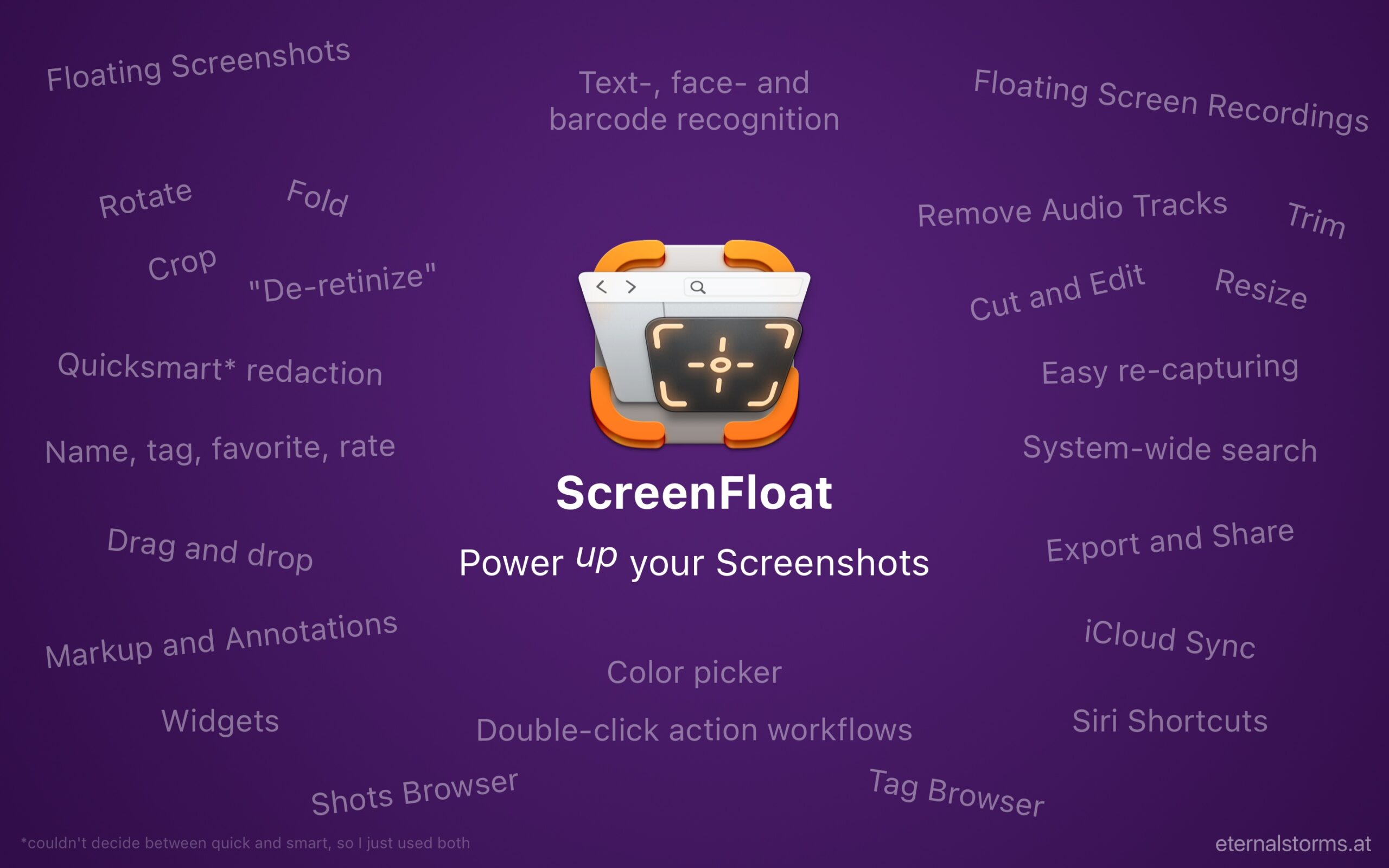
ScreenFloat is your Screenshot All-Rounder.
Capture screenshots and recordings that float above other windows, allowing you to reference anything on your screen, anywhere. It’s like Picture-in-Picture, only for screen captures.
It keeps your Desktop clutter-free, as every capture you make is stored in its Shots Browser, where you can manage, organize and find your shots. They’re also synced across your Macs.
Easily copy the non-copyable, as ScreenFloat recognizes text, barcode and faces in your shots, which also allows you to effortlessly redact sensitive parts of your screenshots.
Add non-destructive annotations, redactions and markup, crop, “fold“, resize, or de-retinize your shots, or trim, cut or mute your recordings. Quickly pick colors.
Create shareable and embeddable links for your captures using iCloud, ImageKit.io or Cloudinary.com.
And so much more.
A screenshot is just a screenshot. Until you use ScreenFloat.
Tip: Check out the Get to Know ScreenFloat 2 Blog Post series for a deep-dive into its functionality and what it can do for you.
ScreenFloat is a one-time purchase, exclusively available on the Mac App Store for USD 15.99 / EUR 14,99 / GBP 15.99 , and a free update for existing customers.
A free, 28-day trial is available for download from the website.
It requires macOS 12 Monterey (macOS 14 Sonoma recommended for full functionality)
A (free) iCloud account is required if you want to sync your ScreenFloat library across your Macs.
ScreenFloat is currently localized in English, German, Chinese (Simplified), and Dutch.
ScreenFloat Website + Free Trial
ScreenFloat on the Mac App Store
Eternal Storms Software Productivity Bundle on the Mac App Store (includes ScreenFloat, Yoink for Mac and Transloader at ~25% off)
Get to Know ScreenFloat 2 Blog Post Series
ScreenFloat 2 Usage Tips
I hope you enjoy ScreenFloat (and my other apps) : )